Camera shows a different IP address than before
Symptom
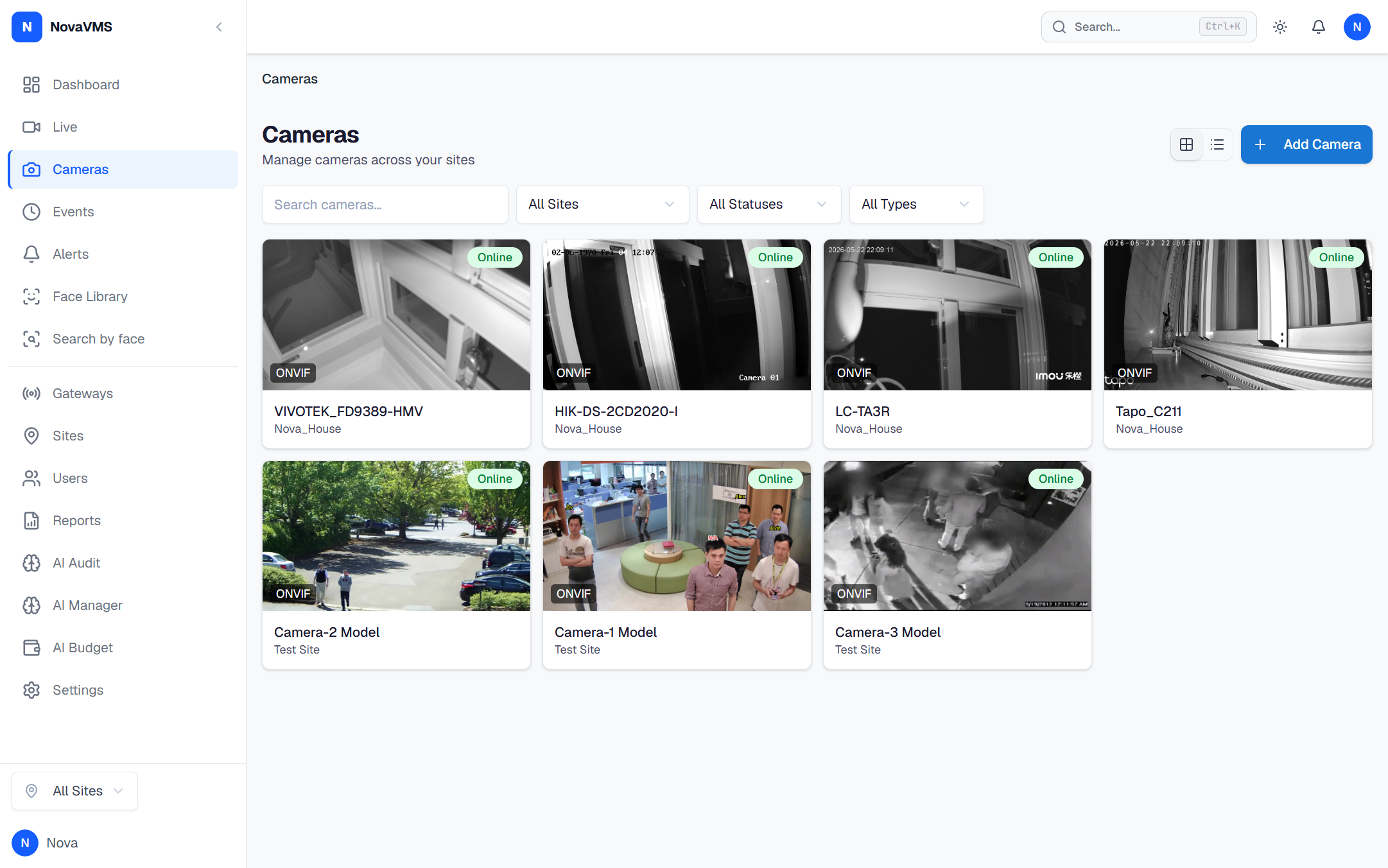
On the Cameras page, a camera you installed yesterday now shows a different IP address than the one you wrote down during install. Or the camera cycles between two IPs day by day. NovaVMS occasionally marks it Offline for a minute, then rediscovers it at the new address and marks it Online again.
Likely causes
- DHCP lease expired and the router handed out a new address. Most consumer and small-office routers release leases after 24 hours or on router reboot.
- No static IP is set on the camera. The camera booted, asked DHCP for an address, and got whatever was free.
- Two devices briefly claimed the same IP (conflict). When DHCP resolves the conflict, one of them moves — sometimes the camera, sometimes the other device.
Fix
Pick one of the two options below. Either works; DHCP reservation is easier when you have many cameras, static IP is easier when you only have a few and want the camera to survive a router swap.
Option A — Reserve the IP by MAC address on your router
Most routers call this DHCP Reservation, Static DHCP, or Address Reservation.
- Find the camera’s MAC address. It’s on the label (sticker) on the back of the camera, or in the camera’s own web UI under Network or System Info.
- Log into your router.
- Open the DHCP reservation page (naming varies: on TP-Link it’s DHCP → Address Reservation, on Unifi it’s Client Devices → Fixed IP, on OpenWrt it’s Network → DHCP and DNS → Static Leases).
- Add a reservation: MAC address + the IP you want the camera to keep.
- Reboot the camera (or wait for the current lease to expire, up to 24 hours).
Option B — Set a static IP on the camera itself
- Open the camera’s own web UI (not NovaVMS — the camera’s IP in a browser).
- Sign in with the camera’s admin credentials.
- Go to Network → TCP/IP or Network → Basic (naming varies by brand).
- Switch the mode from DHCP to Static.
- Enter the IP, netmask, gateway, and DNS. Pick an IP outside your router’s DHCP pool to avoid future conflicts.
- Save. The camera reboots.
After either option — rediscover in NovaVMS
- Open the camera detail page in NovaVMS.
- Click the Reconnect button in the page header (visible only when the camera shows offline;
frontend/src/pages/CameraDetailPage.tsx:245). This re-runsconnect_cameraagainst the gateway. For a fleet-wide re-scan use the gateway’s Discover action instead (WS-Discovery multicast). - Wait 60 seconds. NovaVMS picks up the new (or newly-fixed) IP.
Verify
- Reboot the camera. Within 60 seconds NovaVMS rediscovers it at the intended IP.
- The IP column on the Cameras page shows the expected address.
- 24 hours later, the IP column still shows the same address — the lease renewed without moving.
- Live view opens with no errors.
If none of this worked
Collect the camera’s MAC, the intended IP, and the current IP shown in NovaVMS. From the gateway host:
sudo journalctl -u novavms-gateway --since "10 minutes ago" | grep -i discover > camera-discover.logAttach camera-discover.log, the router brand/model, and whether your network has multiple DHCP servers (one router plus one access point with DHCP enabled, for example) to a ticket at support.novalien.com.
See also: