Invitation link says "Link expired"
Invitation link says “Link expired”
Symptom
You clicked the link in the welcome email (or a password-reset email) from NovaVMS. Instead of the expected Set your password screen, you see a Link Expired card with the message This link has expired. Request a new one. and a link to Forgot password.
Likely causes
- The link is older than 1 hour. Password-reset links expire 1 hour after they are issued (PRD auth-users §1.3). Note: the welcome email sent when an admin first creates your account contains a temporary password directly (not a token link), so it does not “expire” — you just have to change it on first login. This troubleshooting page applies to the password-reset link, sent when an admin clicks Reset Password on your row or when you used Forgot Password? yourself.
- The link has already been used. Once you successfully set a password, the token is consumed. Clicking the old link again returns the same Link Expired card.
- The clock on your device is wrong. A device clock skewed more than a few minutes into the future can make an otherwise-valid link look expired.
Fix
If you never used the link
Use the self-service flow on the login page:
- Open novavms.novalien.com.
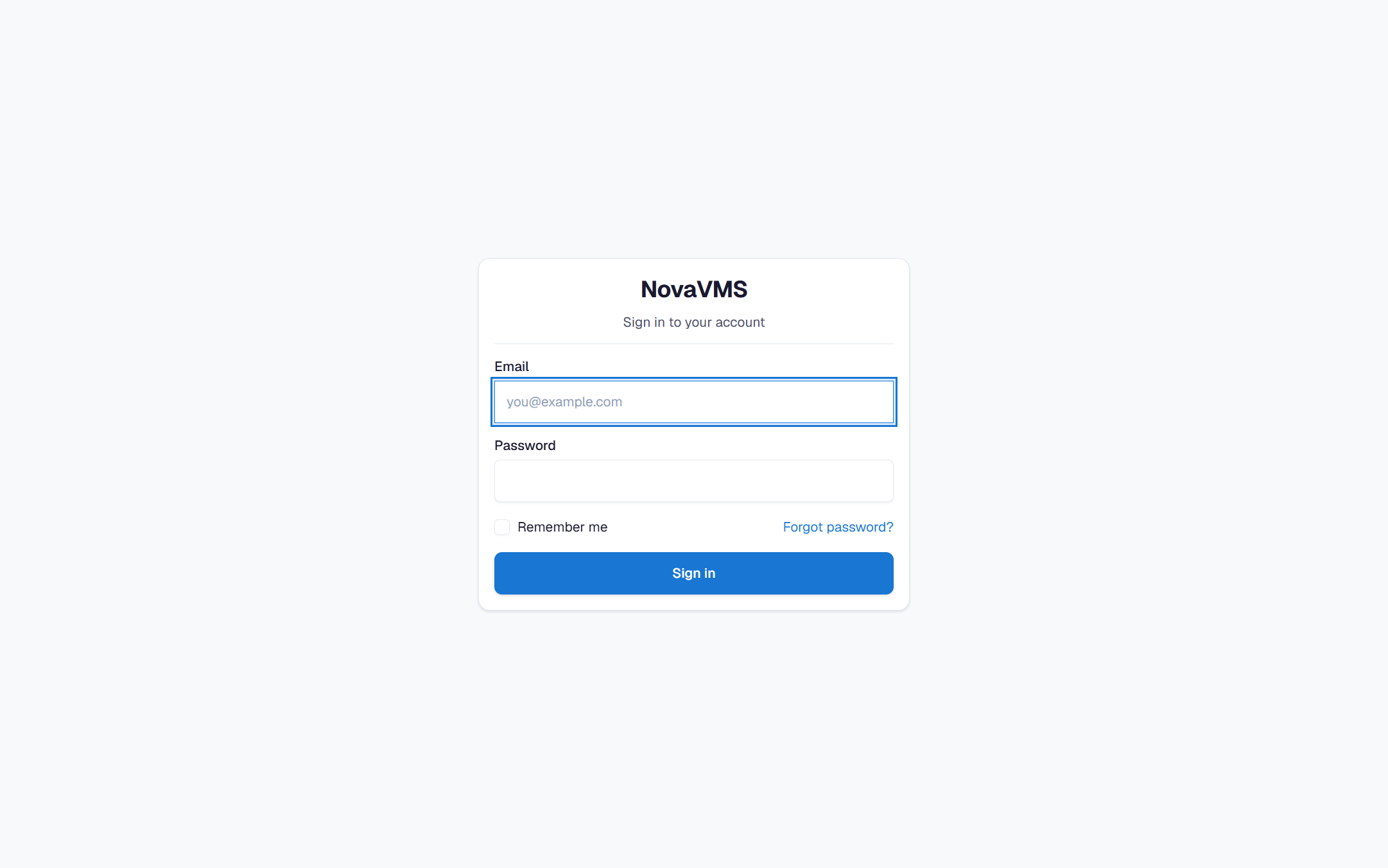
- Click Forgot password? under the Sign In button.
- Enter your email address and click Send reset link.
- Check your inbox for a fresh reset email. Use the link within 1 hour.
If you already used the link once
You have a password. Go to novavms.novalien.com and sign in with the password you set. If you do not remember it, use the Forgot password? flow above.
If the reset email doesn’t arrive
See Invitation email didn’t arrive for the full diagnostic.
If you need the admin to resend the invite
Your admin can regenerate your temporary password from the Users page:
- Admin opens Admin → Users and finds your row.
- Admin clicks the row menu → Reset Password. See Reset a user’s password.
- A fresh email lands in your inbox within minutes.
Verify
- The new link from the fresh email opens the Set your password screen, not the Link Expired card.
- You can set a new password and land on the dashboard.
- On the login page, your new password works.
If none of this worked
If resend-after-resend keeps landing on Link Expired:
- Verify your device clock. On Windows: Settings → Time & Language → Date & time → Sync now. On macOS: System Settings → General → Date & Time → toggle Set time and date automatically off and back on.
- Try the link from a different device — a different clock usually rules this in or out immediately.
- If still failing, open a support ticket at support.novalien.com with your email and the time you received the email. Support can check the token state on the backend.
See also: