Invite a user
New users land with a 16-character random temporary password and a forced password change on first login. The temp password is always returned in the API response and shown to you in a one-time copy dialog after Create. If SendGrid is configured, NovaVMS also emails the temp password directly to the user. Decide who delivers the credentials before you click Create, not after.
Procedure
- Open Admin → Users from the left nav.
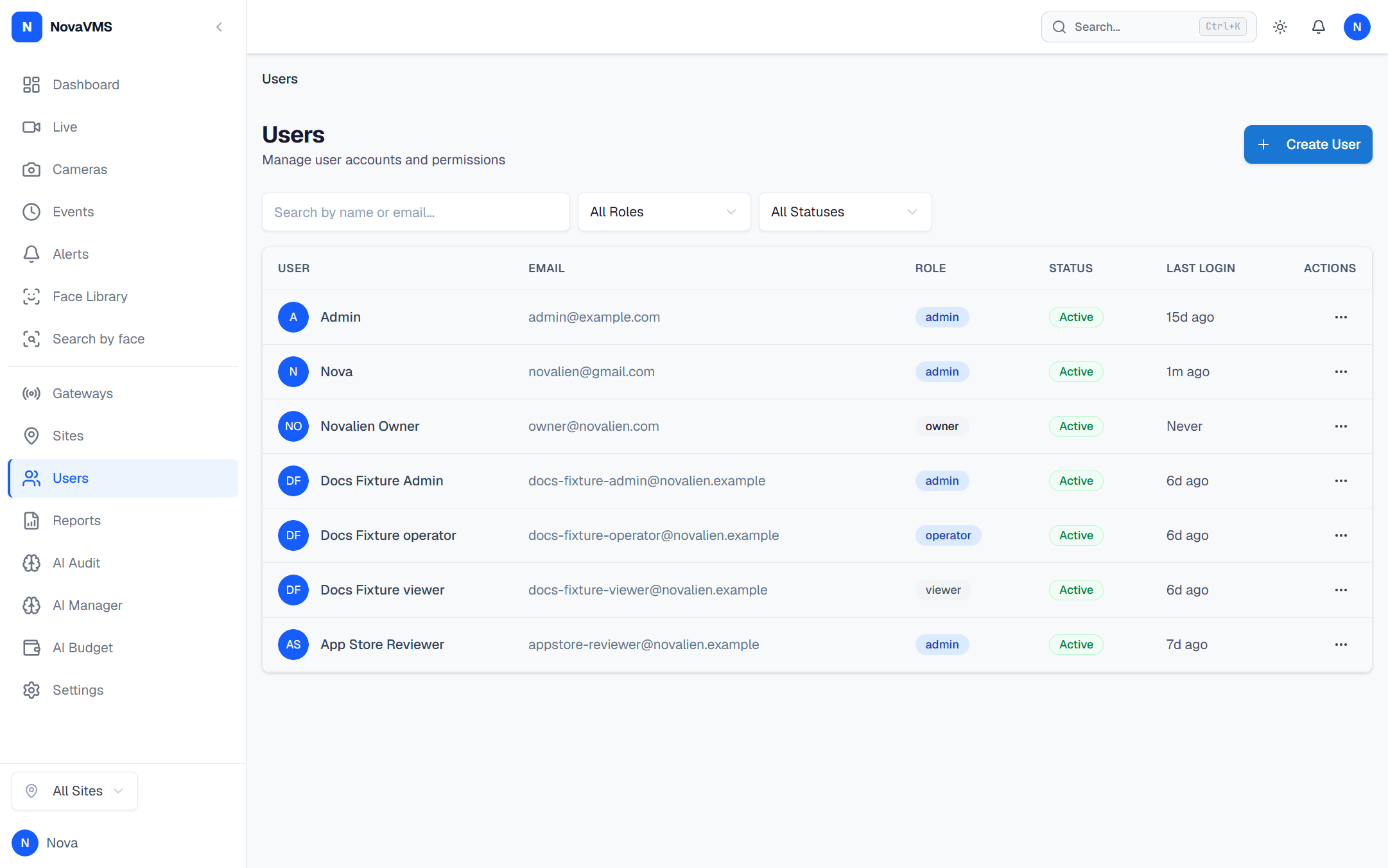
- Click Create User.
- Enter the user’s email and display name.
- Pick a role from the dropdown: Admin, Operator, or Viewer. You cannot create another Owner from this dialog — ownership is moved only via Transfer ownership.
- If you picked Viewer, select the sites they may see. Admins and Operators are org-wide and ignore site scoping.
- Click Create.
- If a temporary password is displayed in the toast (SendGrid not configured), copy it now and deliver it through a secure channel. It is shown only once.
Common variations
- Bulk invite from a CSV: see Bulk import users from CSV to onboard a team at once.
- Re-invite an existing user whose invitation never arrived: use Reset a user’s password — it regenerates the temp password and revokes old sessions.
- Invite without email: set
SENDGRID_API_KEYto empty in the cloud environment; the API returns the temp password in the response body for manual delivery.
If this didn’t work
- If the user never received the welcome email, see Invitation email didn’t arrive.
- If Create User is not visible, your role is Operator or Viewer. User management is Admin/Owner only (D81).
- If the email is rejected as a duplicate, a user with that email already exists in the org. Use Manage site access or Change a user’s role on the existing record instead.
Related
- Roles and permissions — full capability matrix
- Five-role RBAC — why we split governance from operations
- Governance vs operations — which jobs sit on which side of the fence