Review and revoke user sessions
Each user holds up to five concurrent sessions, each tied to one browser or mobile client. You review them here when you suspect account compromise, when a user reports a lost device, or when you need to force a specific browser off the system.
Procedure
- Open Admin → Users.
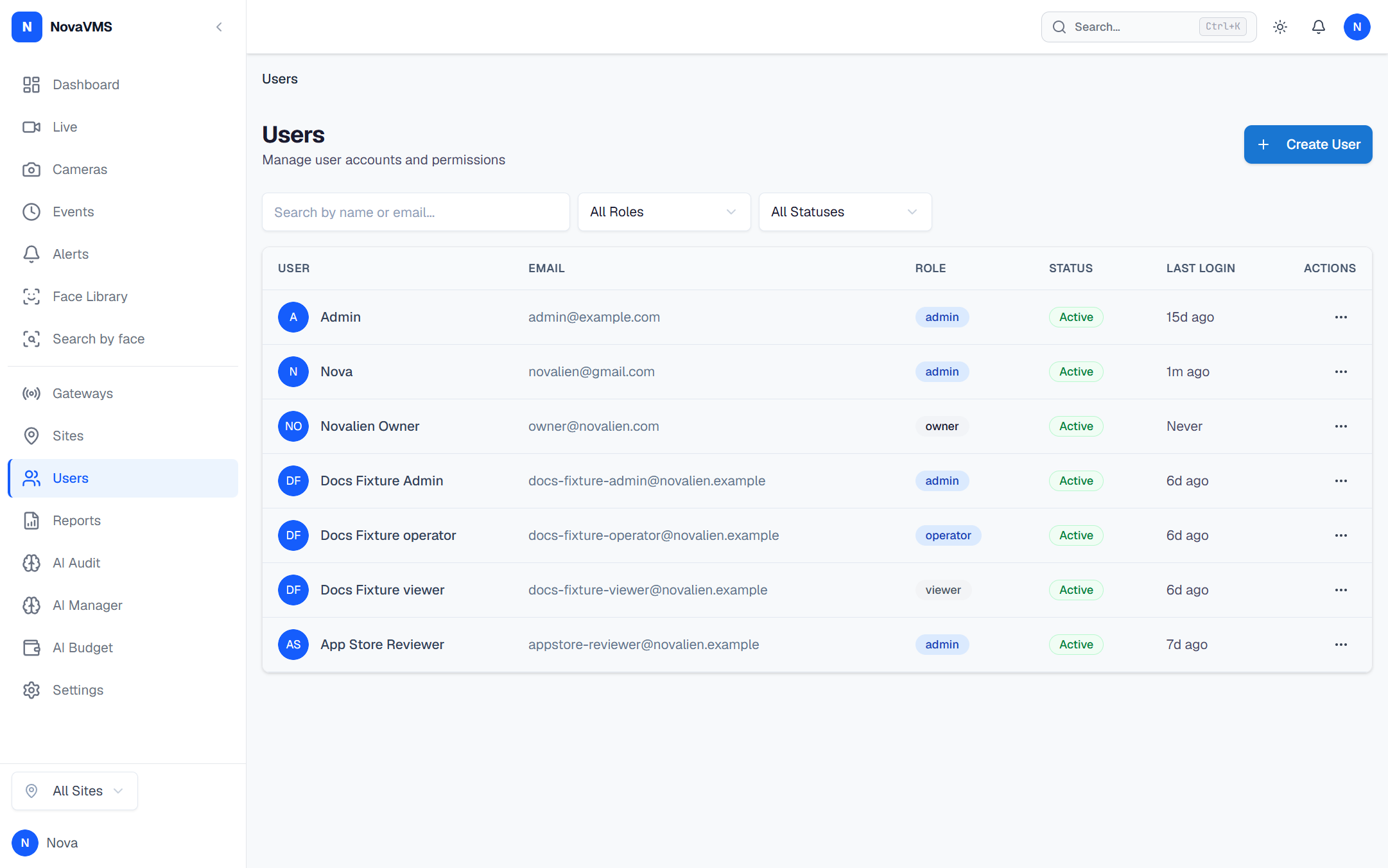
- Click the user’s row to open the edit panel, then open the Sessions tab.
- Review each session’s User-Agent (device / browser), created at, and last used at.
- Click Revoke on the session you want to end.
- Confirm. NovaVMS marks the session row revoked. The session’s refresh token is now invalid — the next refresh attempt returns 401 and the user is sent to the login page. (A
session_evictedWebSocket message is sent only when the system auto-evicts the oldest session because a 6th login pushed past the 5-session cap, not on admin-initiated revocation.)
Common variations
- Kick every session for a user: use Reset a user’s password — that revokes all sessions plus forces a new password.
- Kick every session everywhere (account compromise suspected): disable the user. Disabling is instantaneous, blocks re-login, and keeps their data intact until you re-enable.
- Automatic eviction of the oldest session: NovaVMS already revokes the oldest session when a 6th concurrent session is created. No action needed from you.
If this didn’t work
- If the Sessions tab is empty, the user has no active sessions. They have either logged out, or every session has expired past the 30-day refresh window.
- If the user calls back saying they’re still logged in right after you revoked, that’s expected. Their current access token has up to 30 minutes left. Ask them to refresh the page to force a 401.
- If you need to block the account immediately regardless, see Disable a user.
Related
- Roles and permissions
- Five-role RBAC
- Governance vs operations
- Why sessions don’t end instantly — the 15-minute access-token window explained