Review an event
Use the event detail page to scrub a clip, read the AI-derived evidence, and decide what to do next. Every event includes a snapshot, a clip, an AI summary + narrative (when Gemini has run the non-blocking VLM understanding pass), canonical tags, detected object classes, and matched face profiles.
Procedure
- Click Events in the left nav.
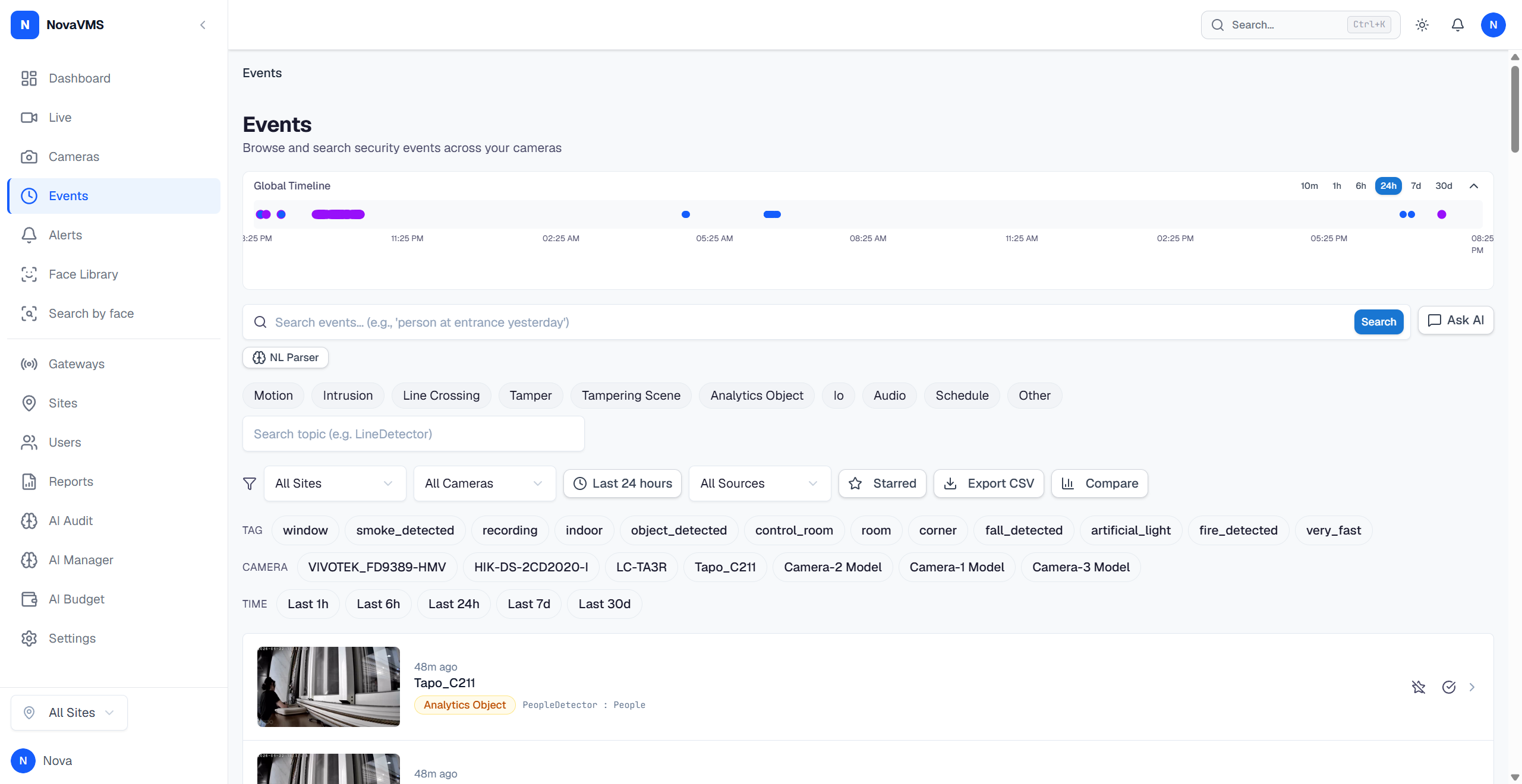
- Click the event you want to review.

- Scrub the player with the timeline. Use the +/-10 s skip buttons for coarse navigation.
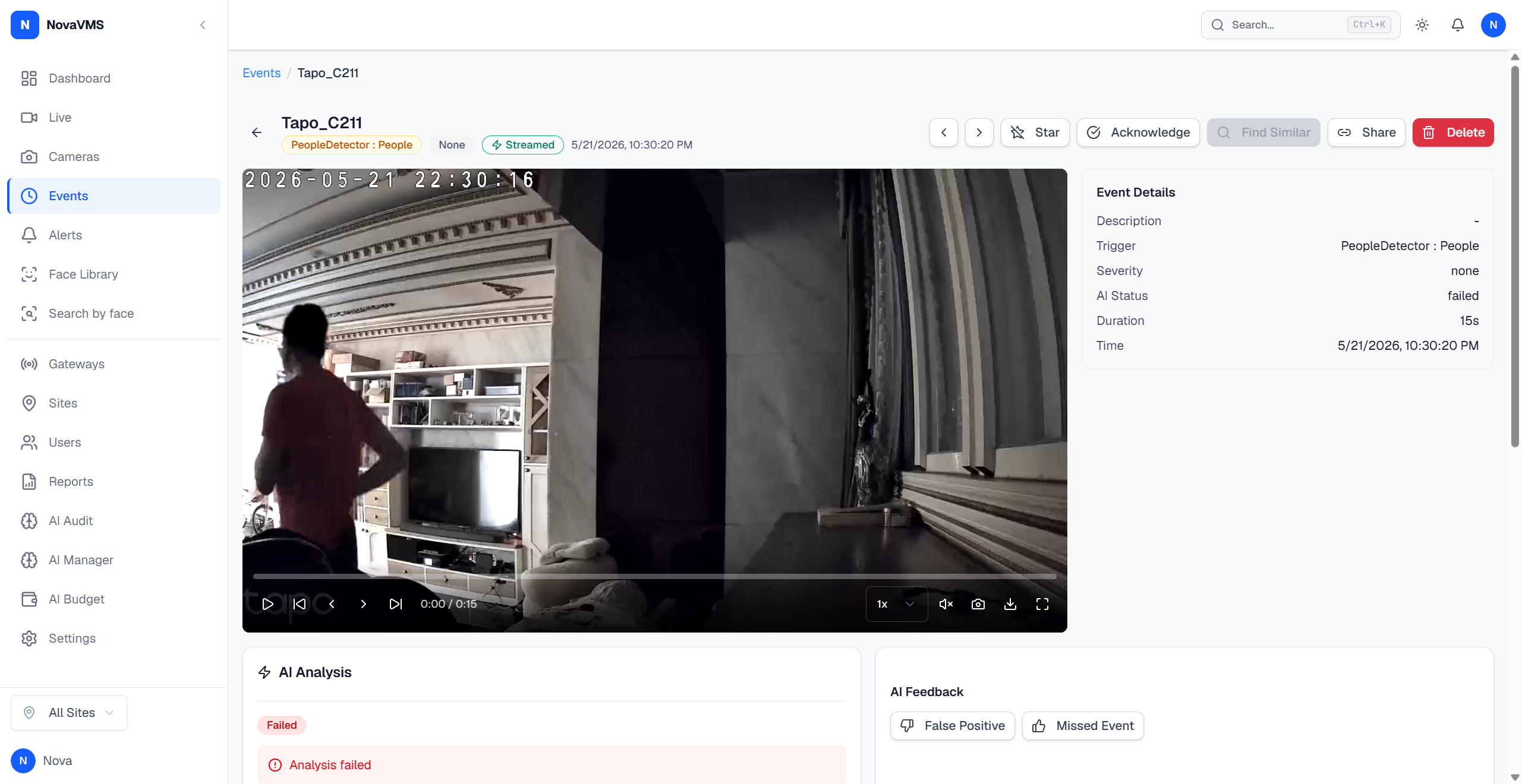
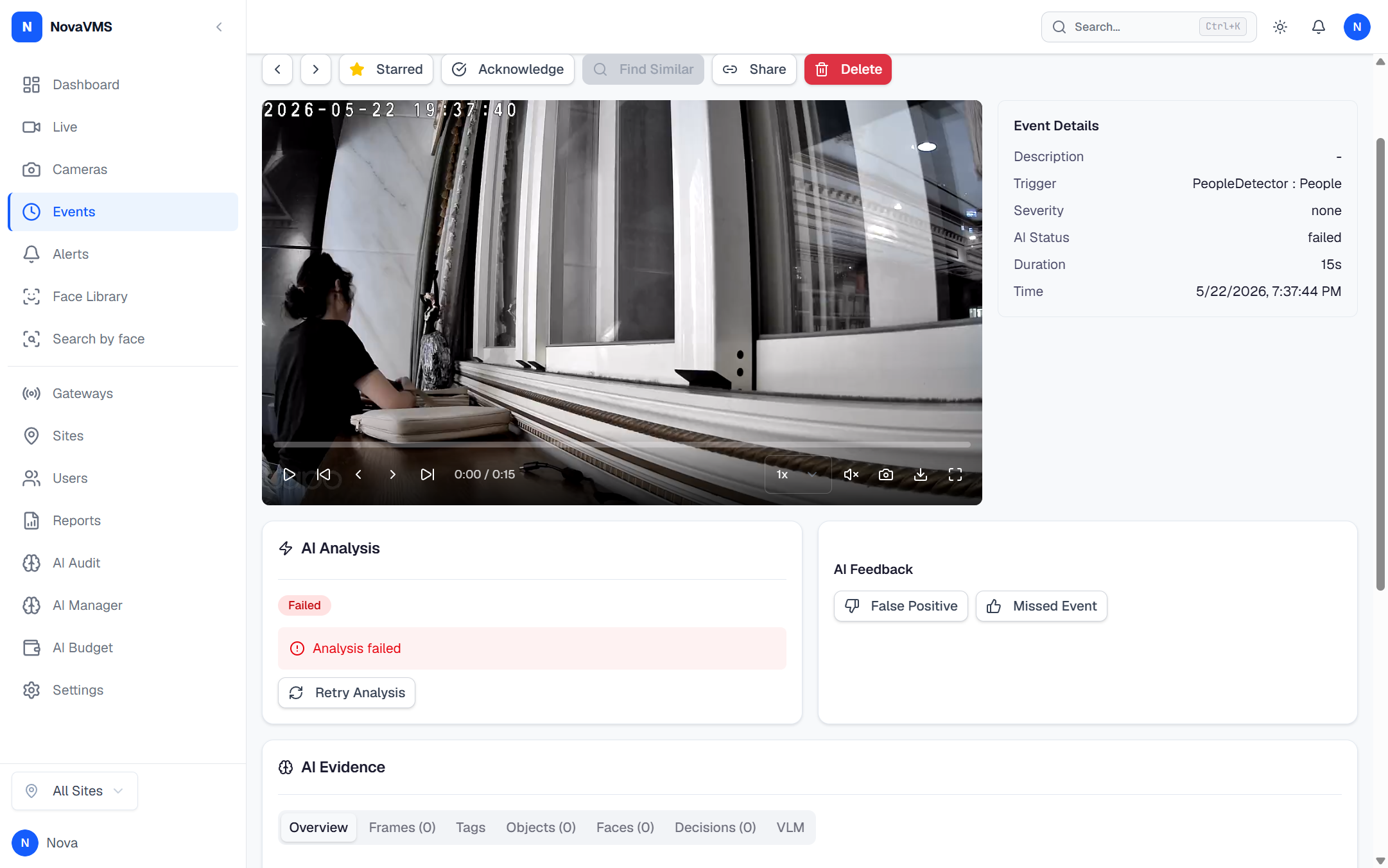
- Read the AI evidence in the sidebar: AI tags, summary, narrative, detected objects, and matched face profiles. For deeper inspection, open the AI evidence panel for the full 7-tab view (frames, tags, objects, faces, summary, suppression status, raw data). See How v5 evidence-first AI works for what each section means.
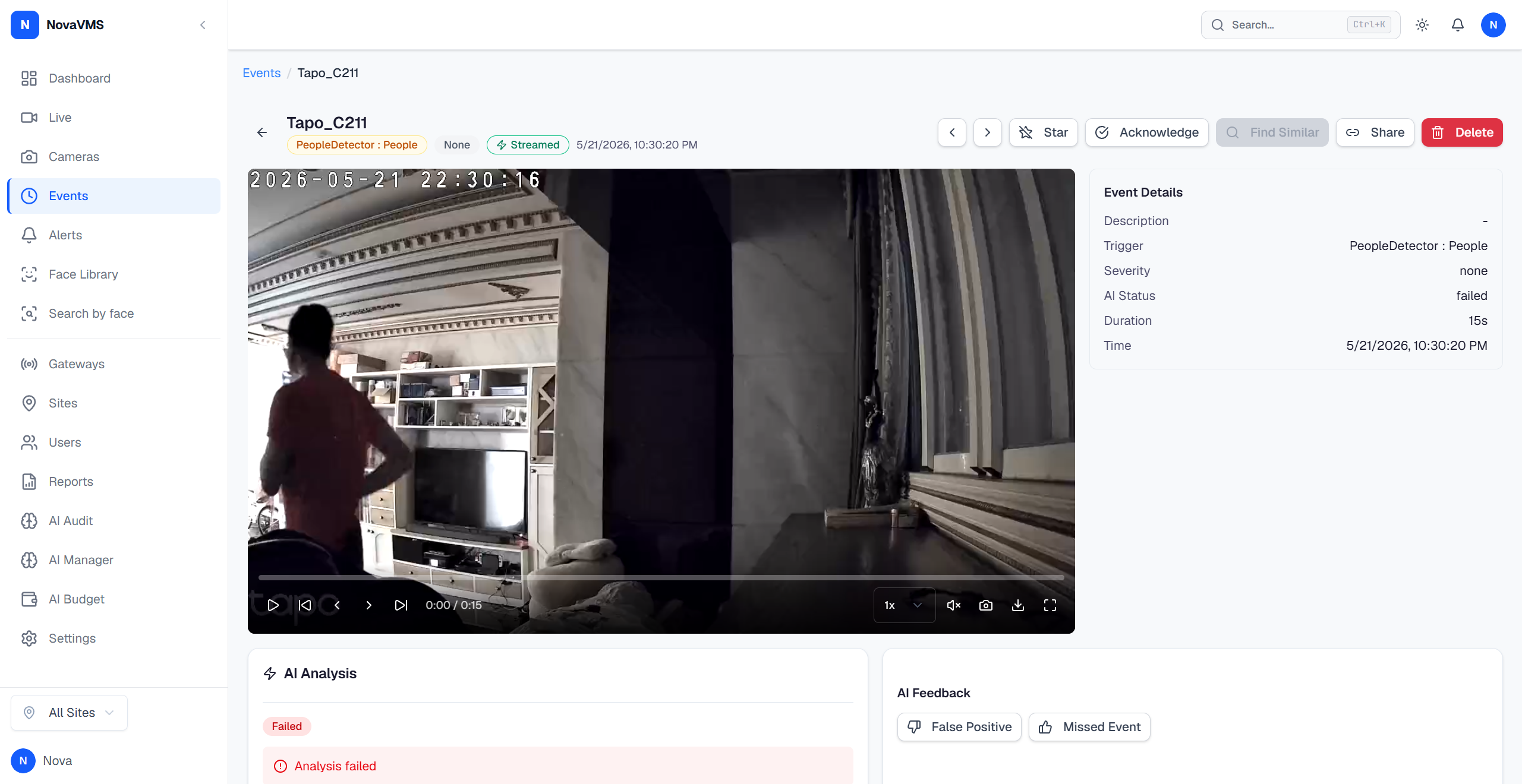
- Add a note if you need to record an action or finding.
- Click the star to flag it (starred events are retention-exempt), or Acknowledge if an alert fired for this event.
Common variations
- Find similar: click Find similar to surface other events that look visually like this one. Results are ranked by AI visual similarity.
- Re-run AI: ask an admin to re-analyse this event if your org’s AI settings have changed since the event was first indexed.
- Ask AI: from the Events list, click Ask AI in the header to ask questions about the currently visible events. Answers cite the specific events they’re based on.
If this didn’t work
- Player shows “Loading” indefinitely — the clip upload may still be in progress. Wait 30 seconds and refresh.
- AI sidebar is empty — AI may be disabled for this camera, or analysis is still running. See Events without AI analysis.
- Tags appear but no summary / narrative — the Gemini layer that writes the narrative either has not finished yet or is in degraded mode. The event is still fully searchable in the meantime.
Related
- Share a clip as a time-limited link — v1 path to send a clip outside NovaVMS
- Export signed evidence (v2 preview) — future tamper-evident MP4 pipeline
- How v5 evidence-first AI works — what each AI stage produces
- Tag vocabulary — the canonical tag set used by NovaVMS AI