Search with natural language
Type a plain-English description of what you remember into the search bar on the Events page. NovaVMS finds the events that visually match your description and ranks them by relevance, no matter which camera they came from.
Use this when:
- You remember roughly what something looked like (“red car at the loading dock yesterday afternoon”) but not the exact time or camera.
- Structured filters (camera + time + tag) don’t narrow it down enough.
- You want to find similar events across many cameras at once.
Procedure
- Open Events.
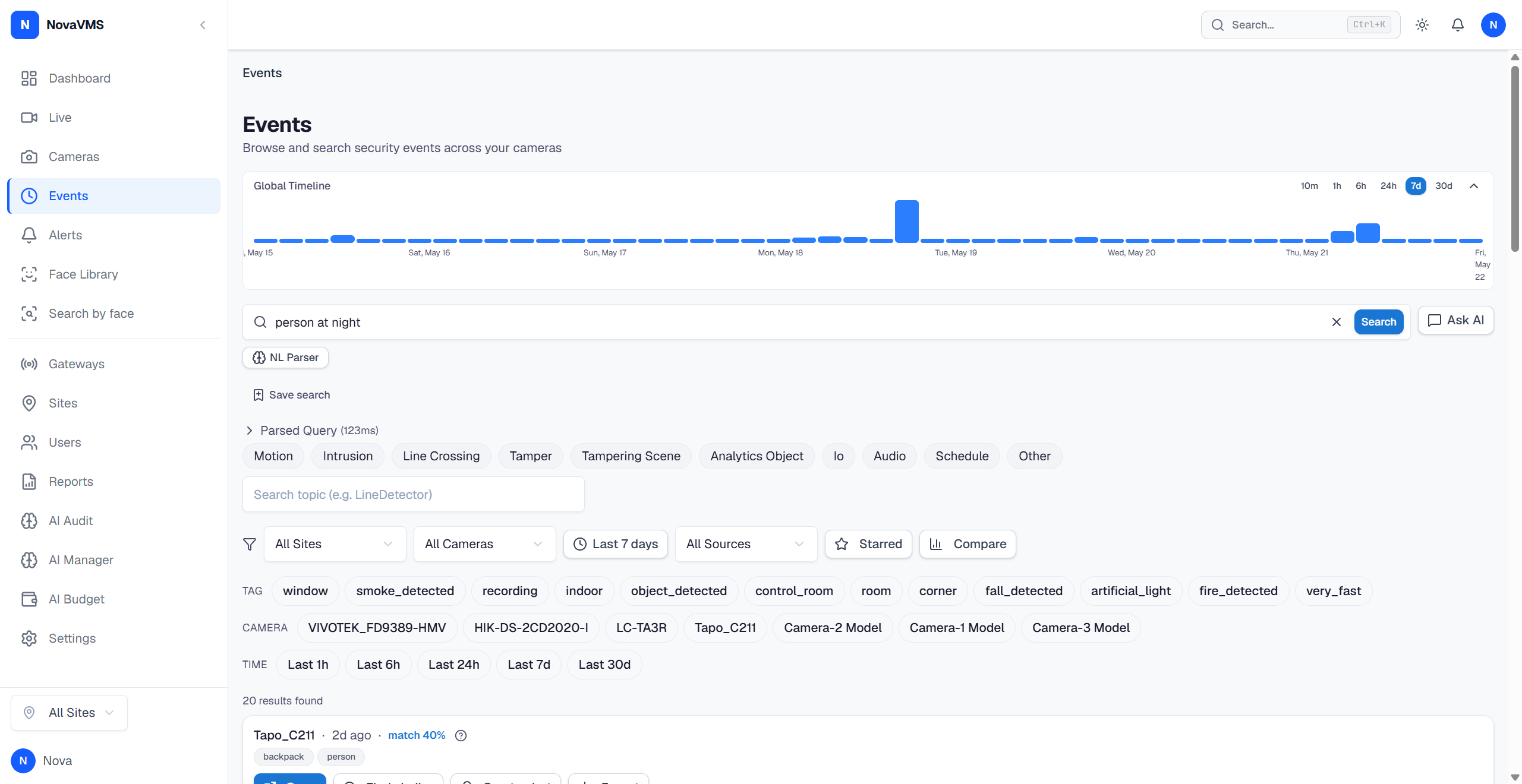
- Type a description. Good examples:
- “red car at the loading dock yesterday afternoon”
- “person carrying a bag near the main entrance after 10 pm”
- “any vehicle with the engine running for more than 5 minutes”
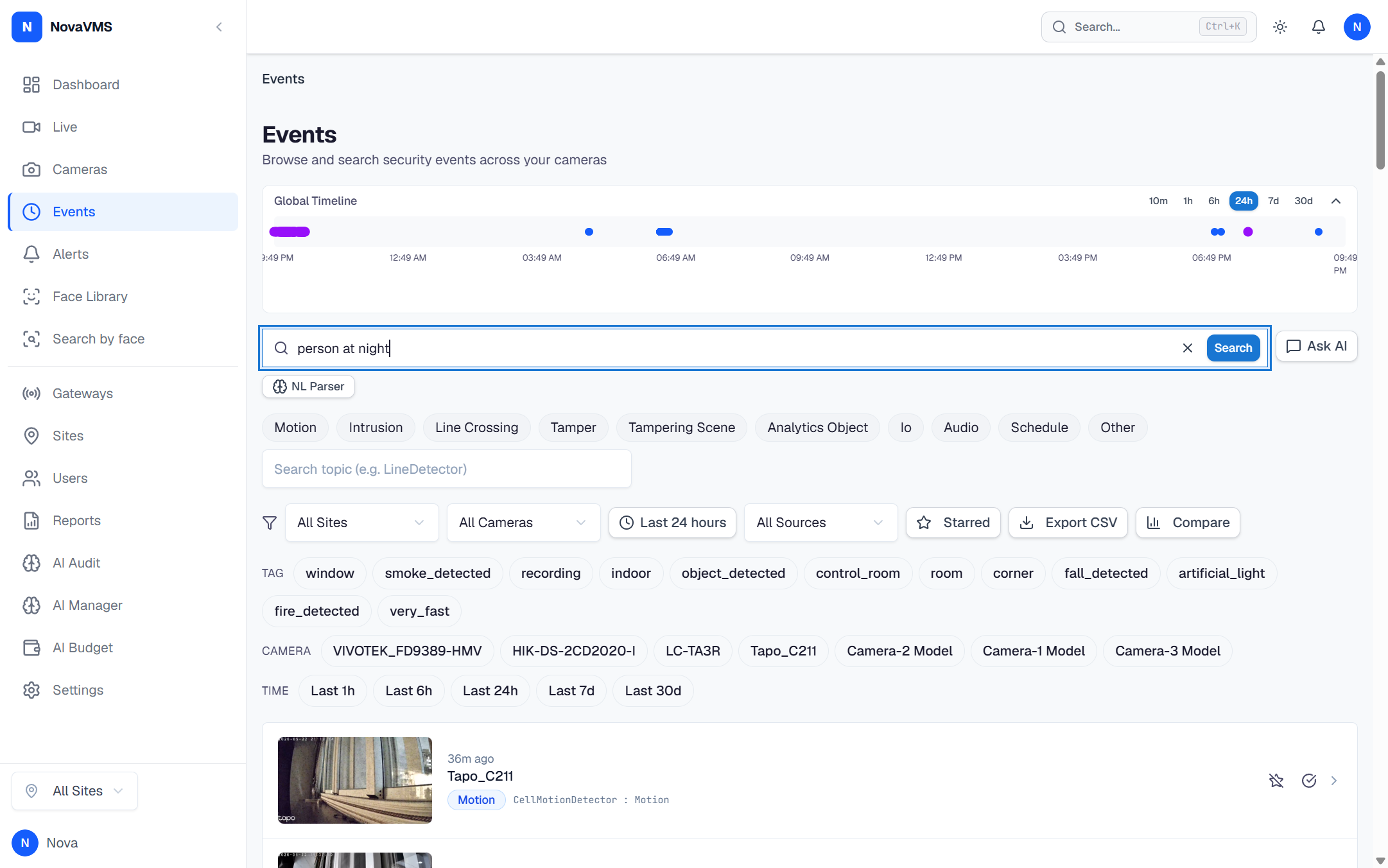
- Press Enter. The result list shows matches ranked by visual similarity.
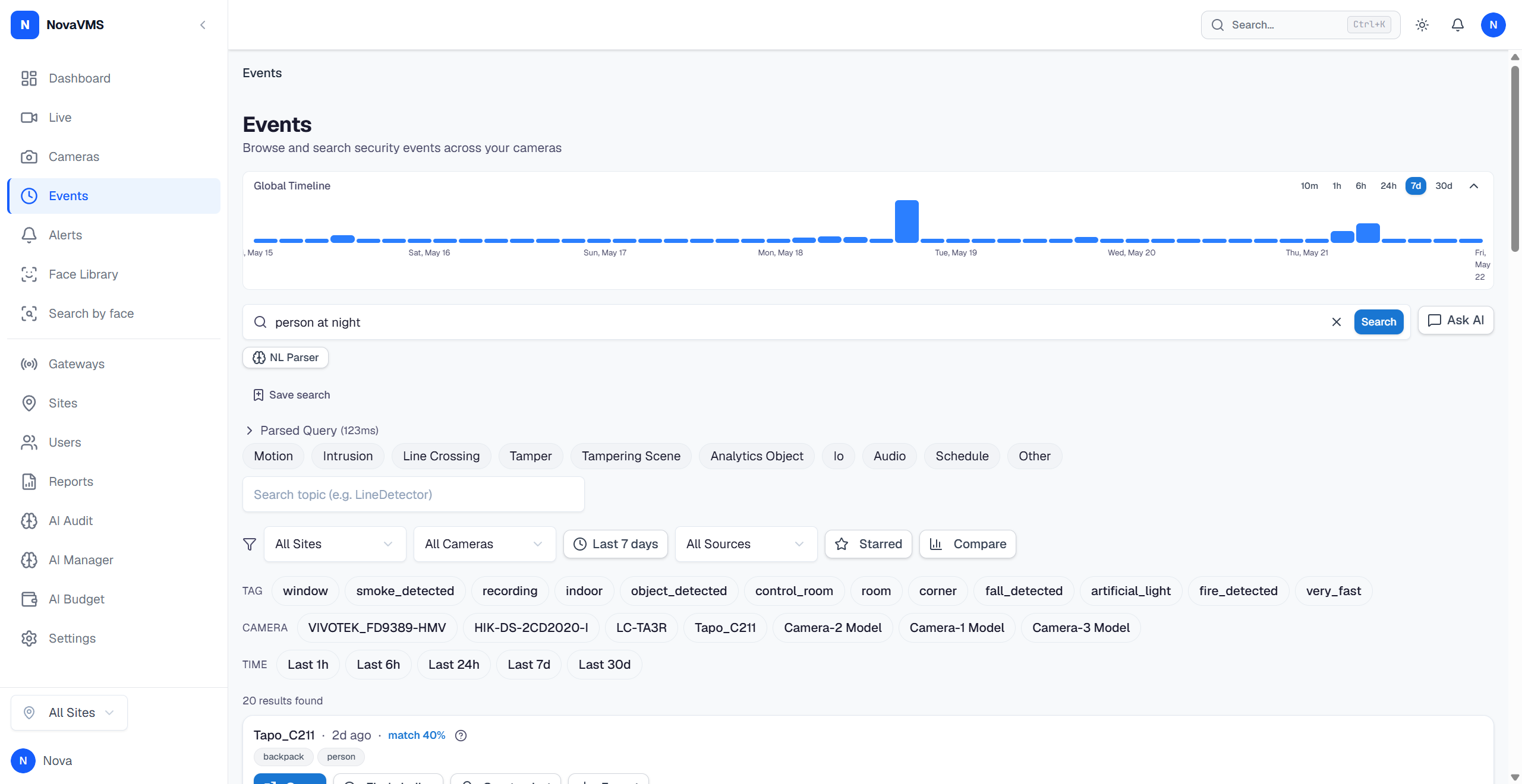
- Click the score chip on a result to open the Search hit score side panel. It breaks the match down into
base_score(raw visual similarity) and three boolean axes — Object match, Tag match, Face profile match — so you can see which explicit filter (if any) the rerank bonus came from.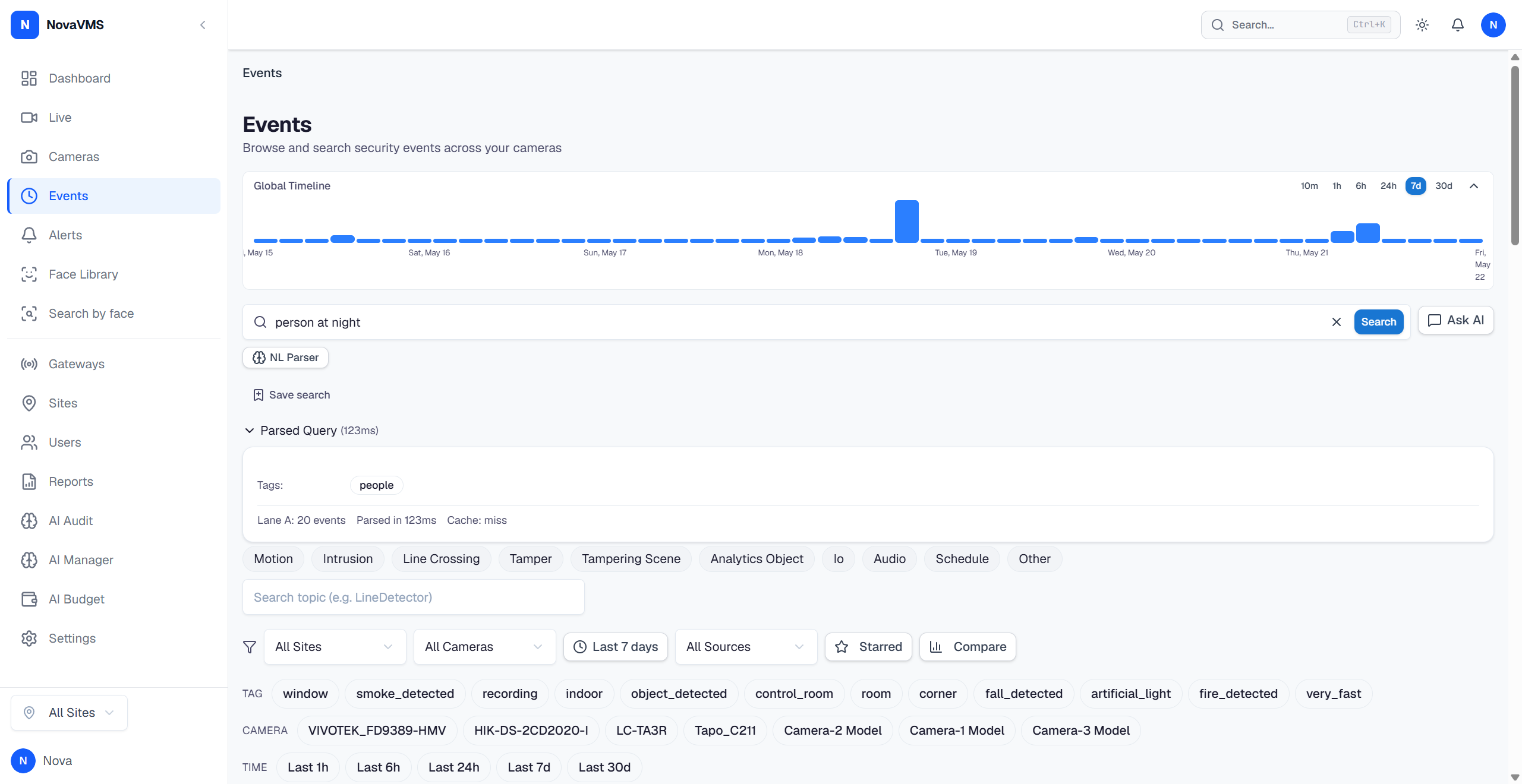
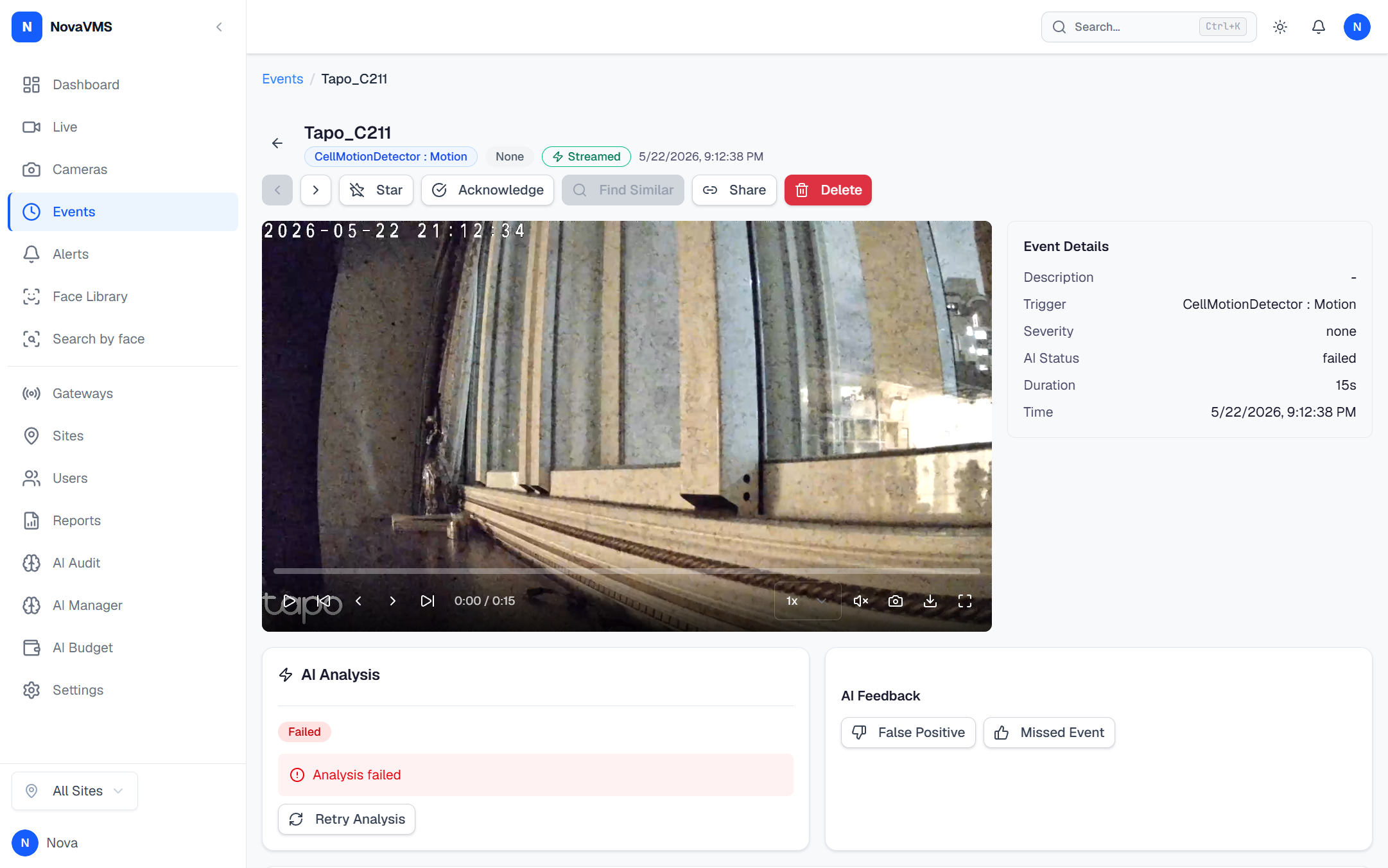
- Click a result to open the event detail page.
Common variations
- Parser fallback: when the natural-language parser cannot reach the LLM, NovaVMS automatically falls back to a rule-based parser. Search degrades (it becomes less forgiving of phrasing) but does not break. The fallback is silent — if you notice results getting worse for a typed query, ask your admin to check the AI admin page at
/admin/ai. - Refine with chip filters: pin an object class (
people,vehicles,animals,bags), a recognised face, a canonical tag, a camera, or a time range to narrow the candidate set before the semantic match runs. - Save the query: click Save search to name and re-run it later. Saved searches list under the search bar. Max 50 saved searches per user. (To “update” a saved search, delete and re-create — there is no edit flow in v1.)
- Multilingual queries: the parser handles multilingual input. The launch gate is bilingual English + one CJK pair (top-5 recall ≥ 80%) — other languages work but are not benchmarked.
- Cohort chat (Ask AI): click Ask AI in the Events page header (NOT on the event detail page) to ask questions about the currently visible cohort of events. The LLM returns an answer plus the canonical set of
matching_event_ids; for count questions the backend rewrites the stated count to matchlen(matching_event_ids)so the user-visible count is always grounded in the enumeration.
If this didn’t work
- No results — the date range picker still applies. Widen it or clear it.
- Surprising rank — open the Search hit score side panel. If
base_scoreis high but no booleans are set, the visual similarity is doing all the work; tighten chip filters to add a rerank bonus. - “AI chat is not configured on this server” toast — the cloud was started without AI provider credentials. Ask your admin.
- 503
ai_maintenanceon POST/api/v1/search— the org is in AI maintenance mode (the AI admin wizard at/admin/ai); wait for the admin to finish, or use structured filters as a fallback.
Related
- Filter events by camera, date, and tag — structured non-AI search
- How visual event search works — the model and ranking deep dive.
- Canonical AI tags — the tag vocabulary the chip filter draws from