Add your first camera
By the end of this tutorial you will see live video from an ONVIF camera on the NovaVMS dashboard. This guide covers the ONVIF-via-gateway path — the fastest way onboard a camera that is on the same local network as a NovaVMS gateway.
What you will need
- Admin or Operator access to a NovaVMS organisation.
- An ONVIF-compatible IP camera, powered on and plugged into the same LAN as your gateway.
- The camera’s username and password. Factory defaults are often printed on a sticker on the camera body.
- A gateway showing a green dot on the Gateways page. If it does not, pair it first — the installer guide ships in Phase 2.
Step 1 — Open the Add Camera flow
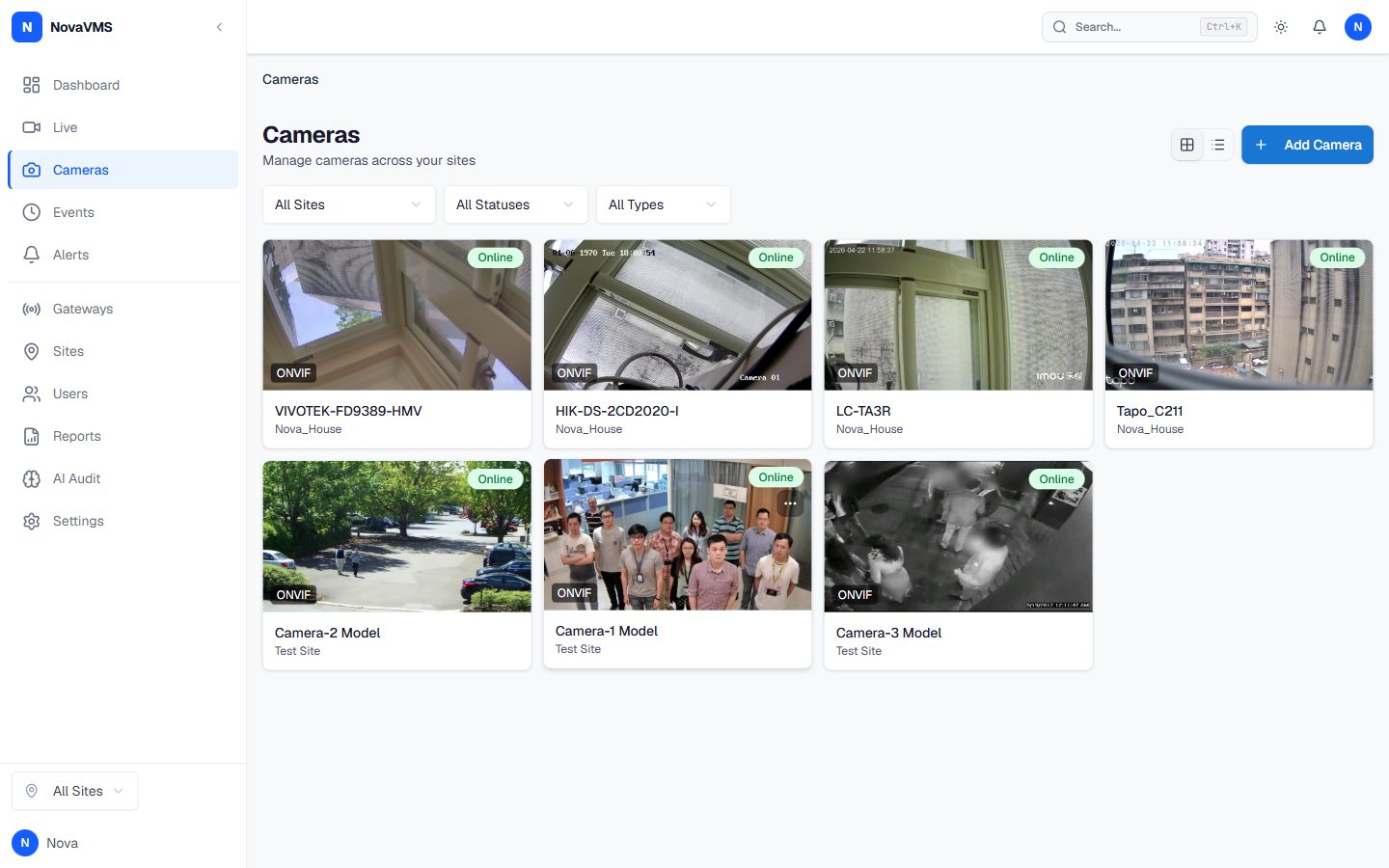
- Click Cameras in the left nav.
- Click + Add Camera in the top-right.
- Choose Gateway ONVIF on the mode selector.
Step 2 — Pick the gateway and discover
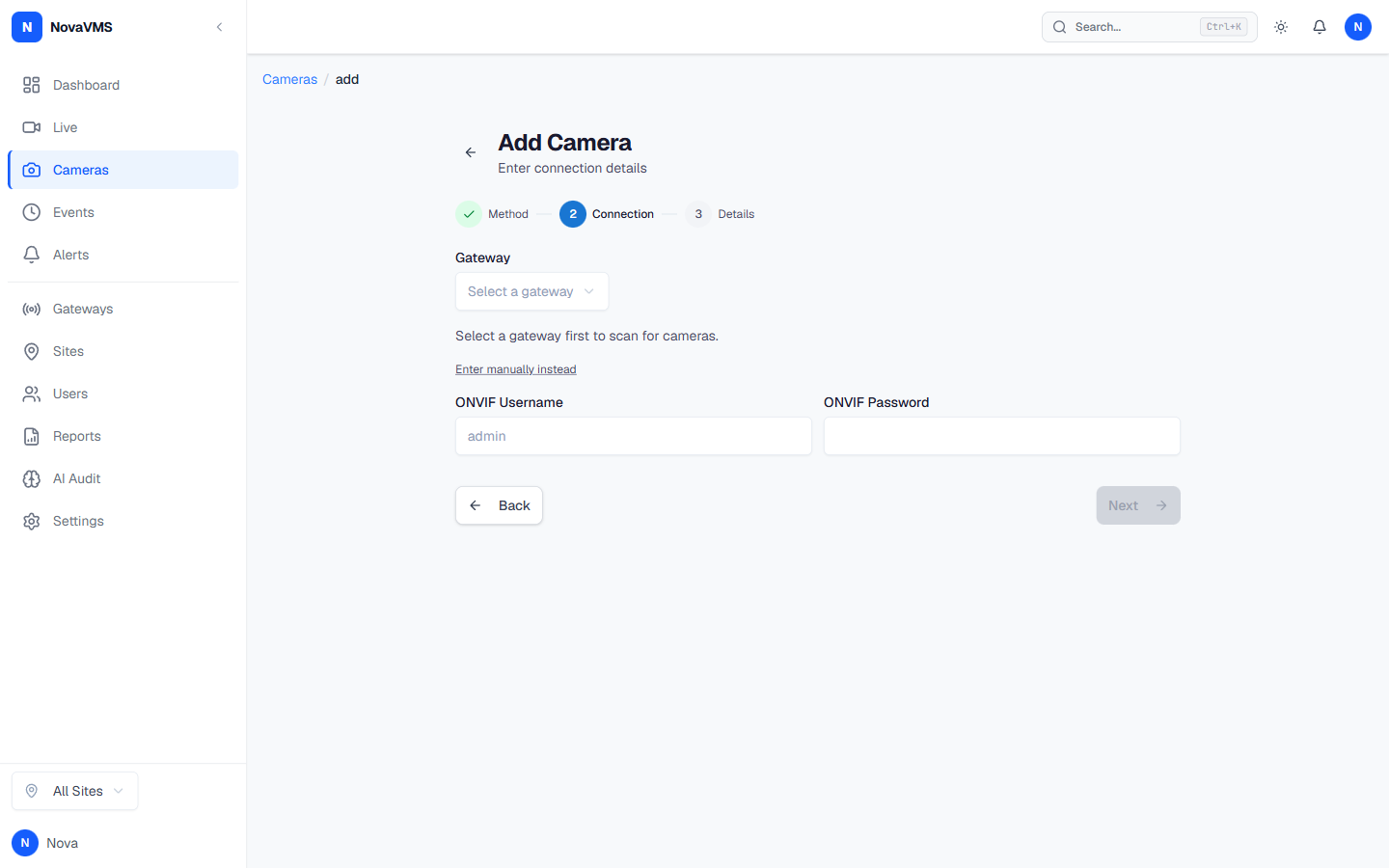
- Select your gateway from the dropdown.
- Click Discover.
- Wait 30–60 seconds while the gateway scans the LAN.
You will see a list of cameras with model name and IP address.
Step 3 — Enter the camera credentials
- Tick the camera you want to add.
- Enter the camera’s ONVIF username and password.
- Click Authenticate.
The gateway runs a clock check, fetches the camera profile, and fetches the stream URL. A green checkmark means authentication worked.
Step 4 — Bind the camera to a site
- Type a name for the camera. Something your team will recognise, like
Front DoororWarehouse Bay 3. - Pick the site this camera belongs to.
- Leave Recording preferences at the defaults for now. You can tune them later — see Configure camera streams.
Step 5 — Save and watch live
- Click Add Camera.
- NovaVMS creates the camera in Pending status while the gateway connects to the RTSP stream.
- Wait up to 30 seconds. The status badge turns green and shows Online.
- Click the camera row to open the detail page.
- The Live tab plays the stream.
You have finished
You can now see live video from your new camera. Next, you may want to:
- Record your first clip
- Set up an alert rule — ships in a future phase; until then, see Configure org policies for org-wide defaults.
- Invite your team
If this didn’t work
- If discovery returns zero cameras, see Cameras not found across VLANs.
- If the camera shows Offline after a reboot, see Camera shows Offline.