Accept an invitation
Your admin has created an account for you. NovaVMS emails you a welcome message containing a temporary password. Use this procedure to sign in, set your own password, and land on the dashboard.
Procedure
- Open the welcome email from NovaVMS. It contains your sign-in URL and a temporary password.
- Click the sign-in link (or paste the URL into your browser).
- On the login page, enter your email address and the temporary password from the email.
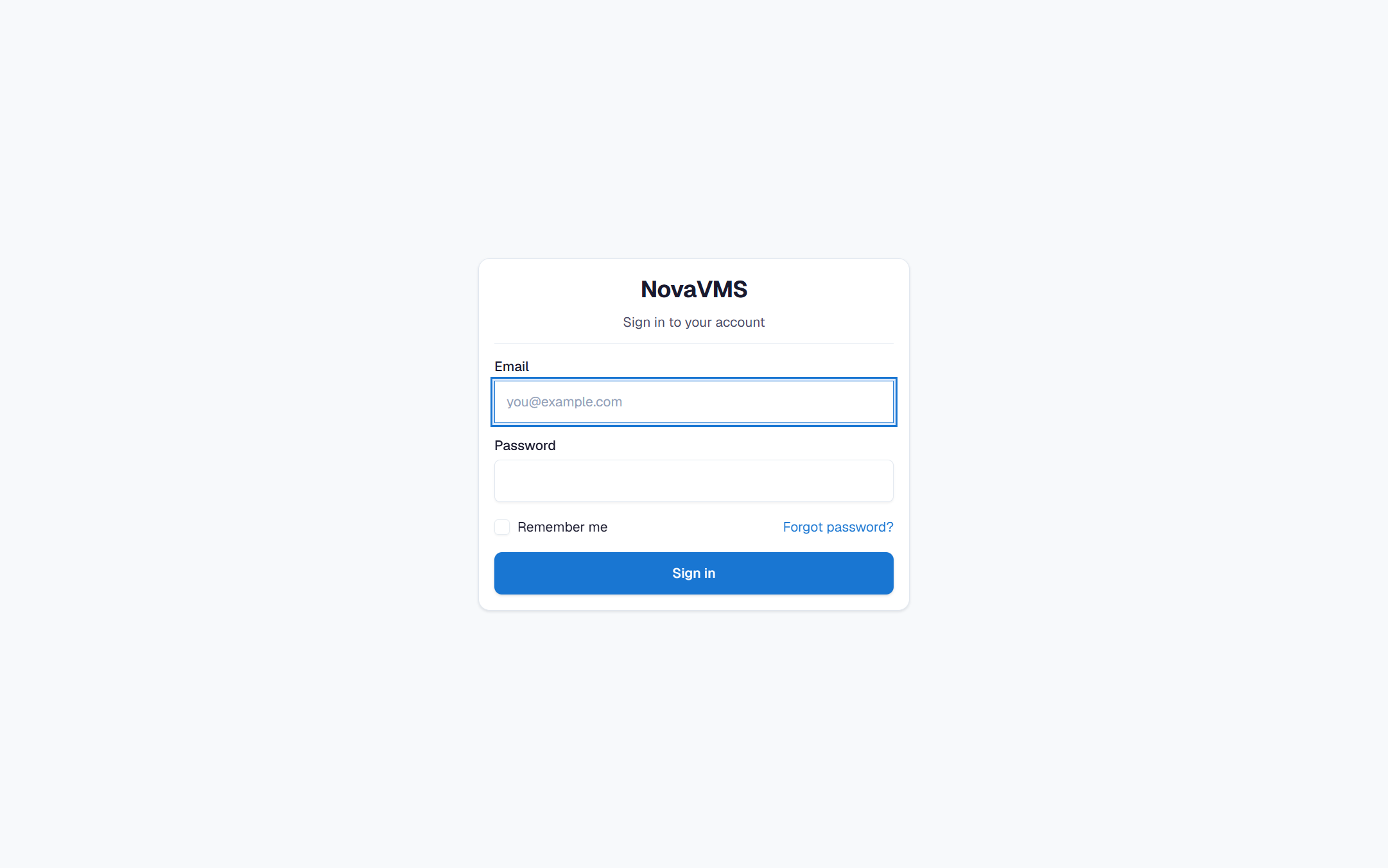
- Click Sign In. NovaVMS redirects you to a Change Password page because your account is flagged as requiring a password change on first login.
- Enter the temporary password again in the current password field.
- Enter and confirm a new password. It must be at least 8 characters (and at most 128), must not be on the system’s common-password list, and must not contain your email address. Character-class requirements (uppercase / lowercase / digit / special) are not enforced in v1 — pick a long passphrase rather than a short complex one.
- Click Change Password.
- NovaVMS signs you in and opens the Dashboard. You are ready to view the cameras your admin has assigned to you.
Common variations
- No welcome email arrived. Check your spam folder. If it is not there after 10 minutes, ask your admin to resend the invite. See Invitation email didn’t arrive.
- Temporary password rejected. Copy the password from the email carefully — trailing spaces and look-alike characters (0 vs O, 1 vs l) are a common cause. If it still fails, ask your admin to reset your password.
- Your admin shared the password in person. If SendGrid is not configured on your NovaVMS, your admin will share the temporary password directly (Slack, SMS, in person). The first-login flow is the same — sign in, change the password.
If this didn’t work
- Email never arrived: see Invitation email didn’t arrive.
- Sign-in link says the invitation expired or the password no longer works: see Invitation link expired.
Related
- Find your cameras — first thing to do after you sign in
- Watch a live camera
- Roles and permissions — what the viewer role can and cannot do