Use the dashboard
The Dashboard is the page you land on after signing in. It is built for triage — at a glance, you should know how many cameras are online, whether anything needs attention, and what has happened recently. Everything on it is read-only summary; clicking through takes you to the page that owns the detail.
Procedure
- Sign in at
https://<your-novavms-host>/login. You land on the Dashboard automatically.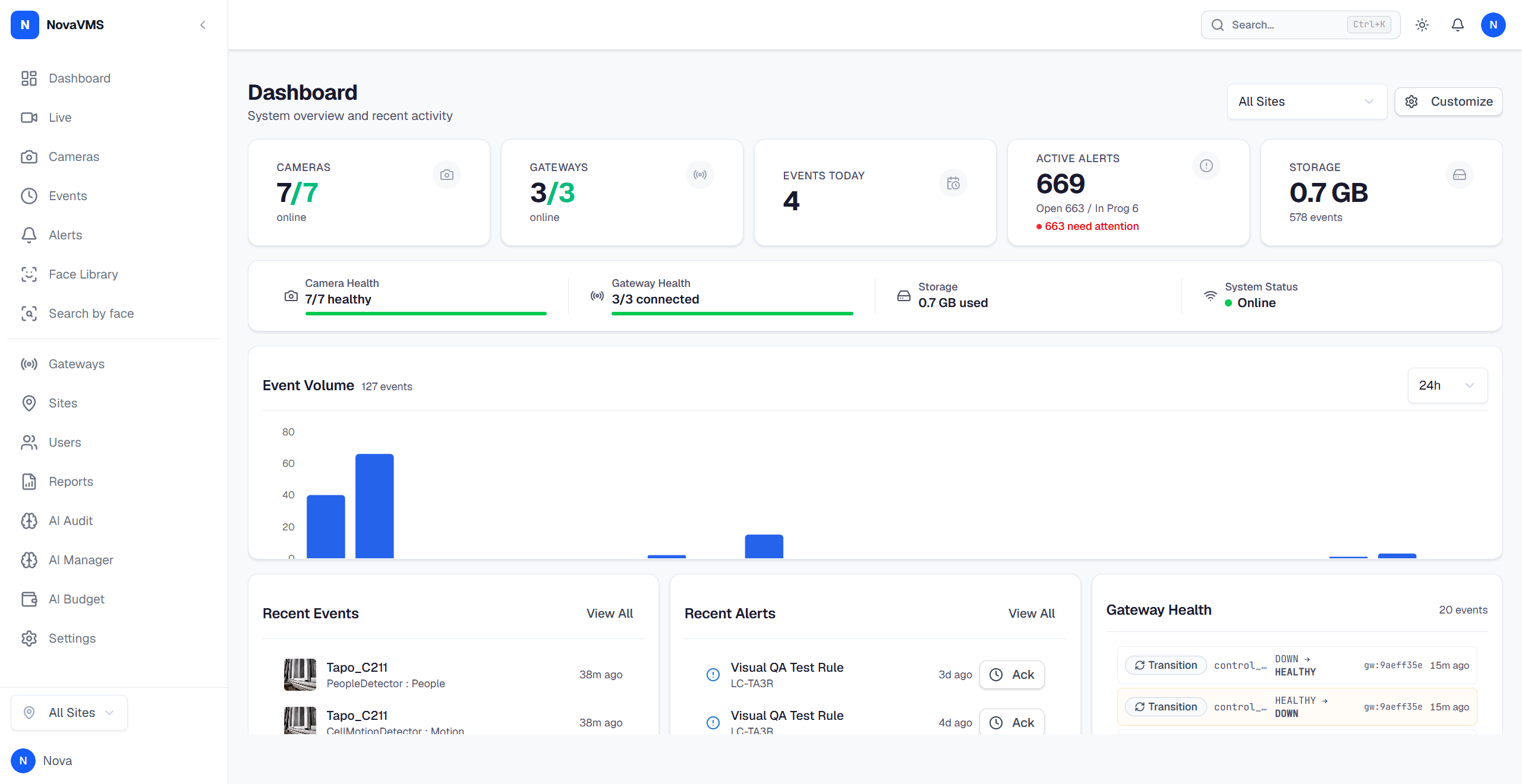
- Scan the five summary cards along the top: Cameras (online / total), Gateways (online / total), Events Today, Unacknowledged Alerts, Storage Used. A red badge on Cameras or Gateways means at least one is offline; a yellow “Needs attention” on Unacknowledged Alerts means the count is greater than zero.
- Read the Event Volume Chart to understand activity patterns. Toggle between
24h(hourly bars) and7d(daily bars). Hover any bar to see the exact count for that period.
- Scan Recent Events (the latest 5). Each row shows thumbnail, camera name, description, and relative time. Click any event to open its full detail page.
- Scan Recent Alerts. Click Ack on any unacknowledged alert to acknowledge it without leaving the page.
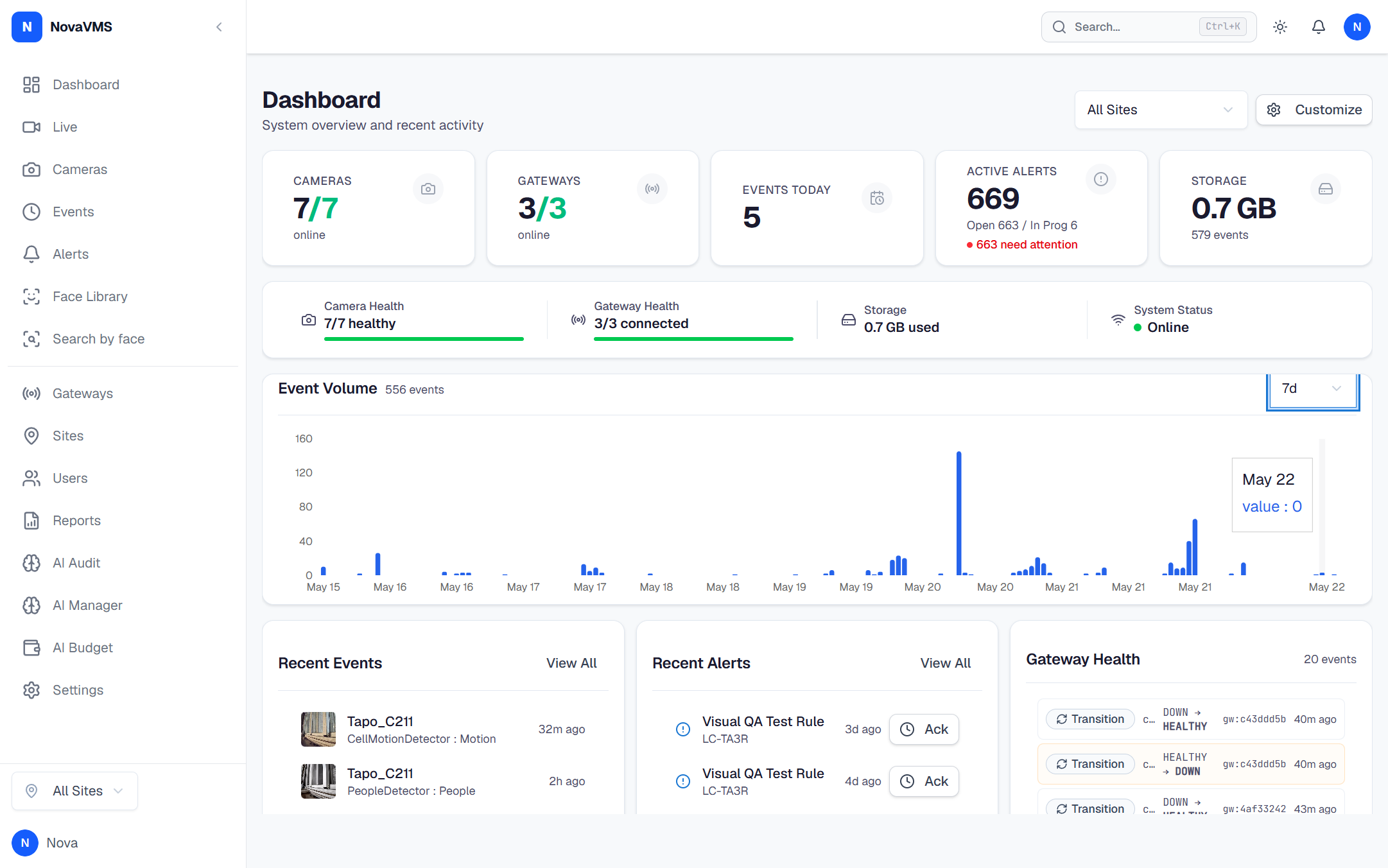
- If you only manage one site, set the site filter dropdown at the top of the page. The summary cards, chart, and lists then reflect only that site.
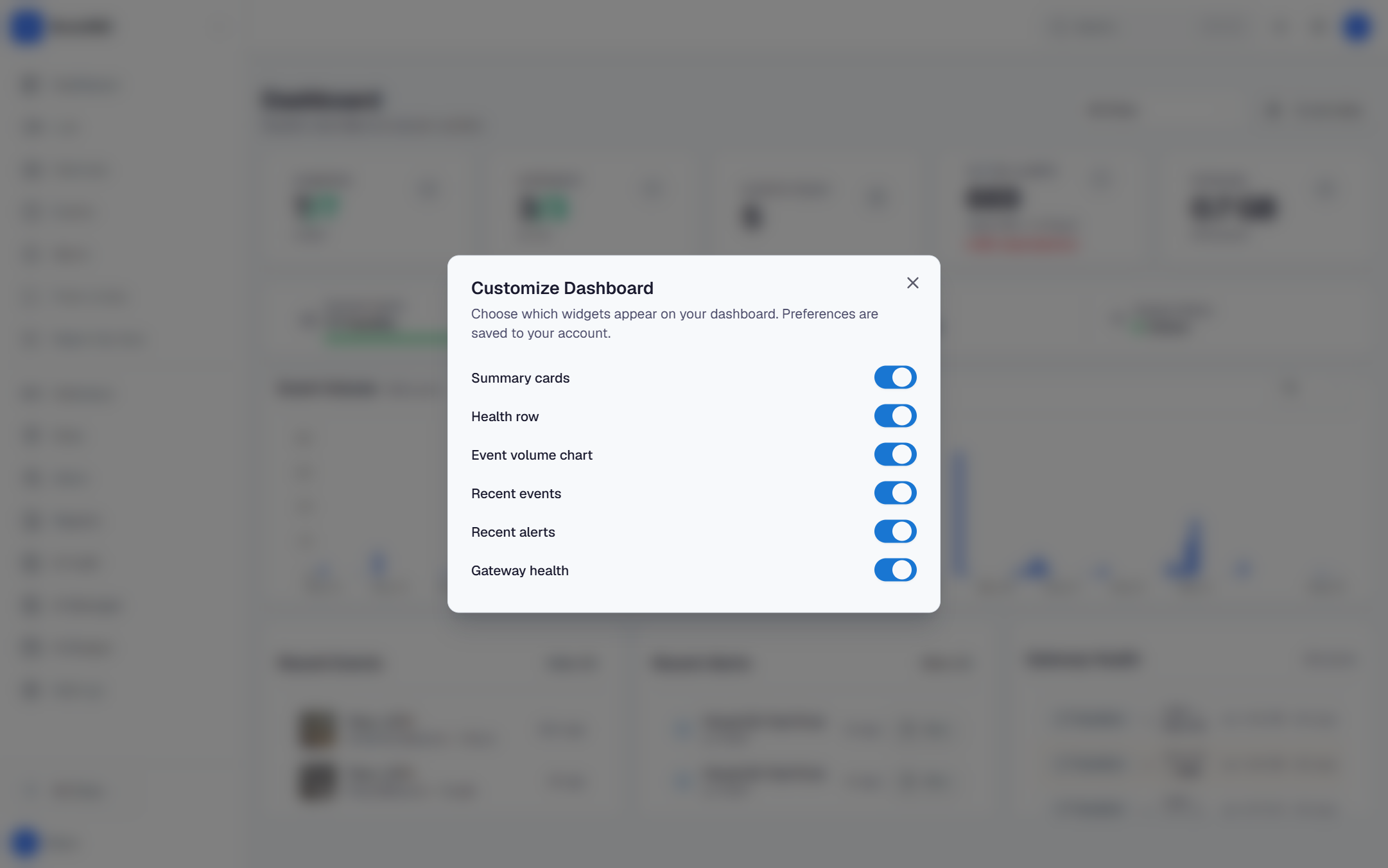
- Click the gear icon in the top-right to toggle which widgets you see. Your preference is saved to your user profile and persists across sessions and devices.
Common variations
- Auto-refresh cadence. Summary cards refresh every 30 seconds; the Event Volume Chart refreshes every 5 minutes. If you need a hard refresh, reload the page.
- No site filter shown. The site filter dropdown only appears when you have access to more than one site. If you have access to a single site, you implicitly always see that site.
- Acknowledged alerts disappear. The Recent Alerts list shows only unacknowledged alerts by default. After you click Ack, the row drops off the list. To see acknowledged alerts, go to the Alerts page.
If this didn’t work
- Cameras card shows “0/0”. Your account has no camera access. Ask your admin to grant you site access — see I cannot see a site I expect.
- Event Volume Chart is empty. Either no events have fired yet, or the time window has no data. Switch from
24hto7dto widen. - Ack button does nothing. You may lack the
alert:acknowledgepermission. Confirm with your admin against roles and permissions.
Related
- Acknowledge or dismiss an alert — the full alert workflow.
- Review an event — what you get when you click a Recent Event.
- Set up your workspace — make the Dashboard match your daily routine.
- Keyboard shortcuts —
Ctrl+Kopens the global search palette from any page including the Dashboard.