Filter events by camera, date, and tag
Use the filter bar on the Events page to narrow the list by camera, site, date range, event category, ONVIF topic, recording source, AI tag, object class, recognised face, and starred state. Filters combine with AND — every filter you add shrinks the result set.
Procedure
- Click Events in the left nav.
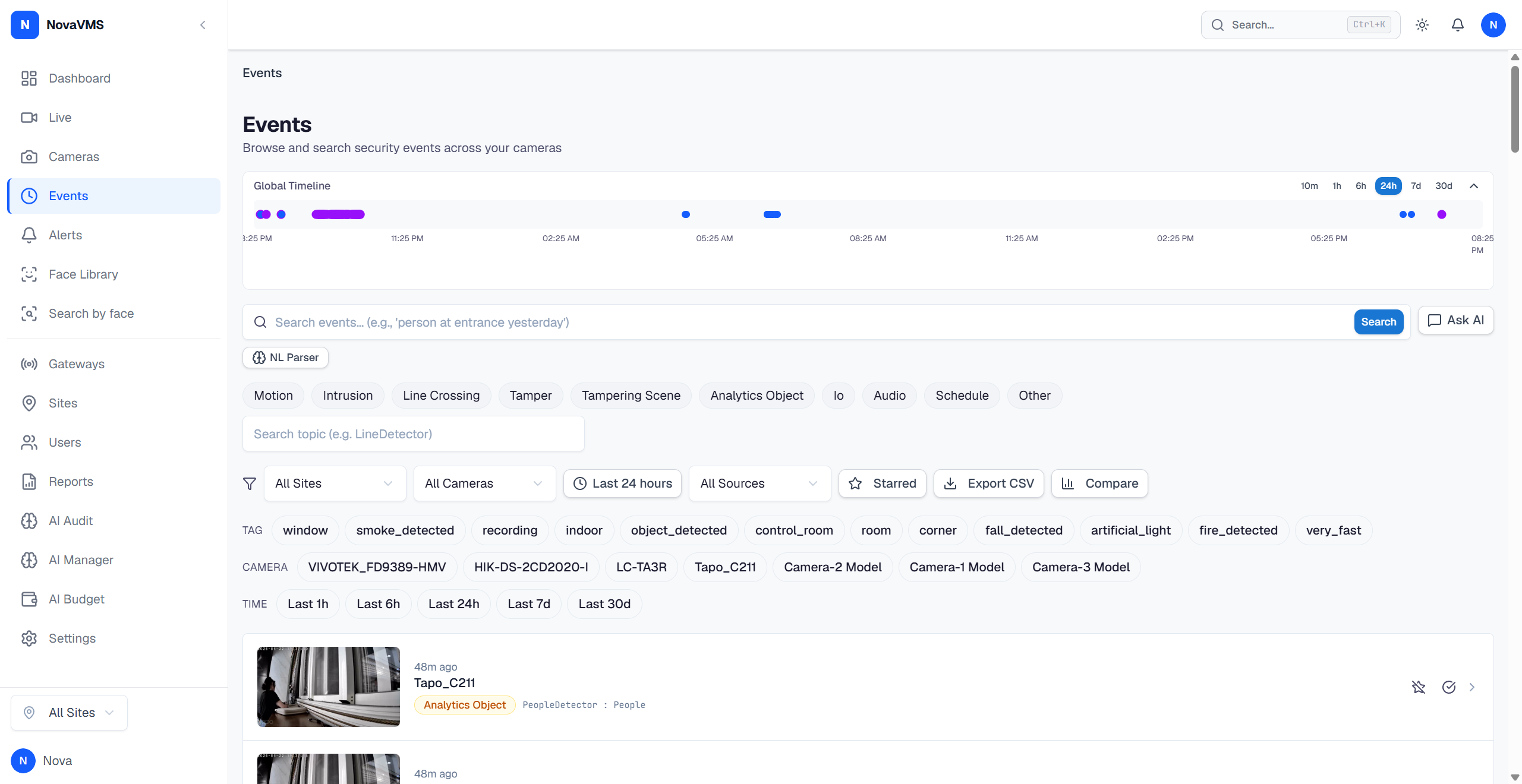
- Pick a date range from the preset buttons (Today, 24 h, 7 d, 30 d) or set a custom range.
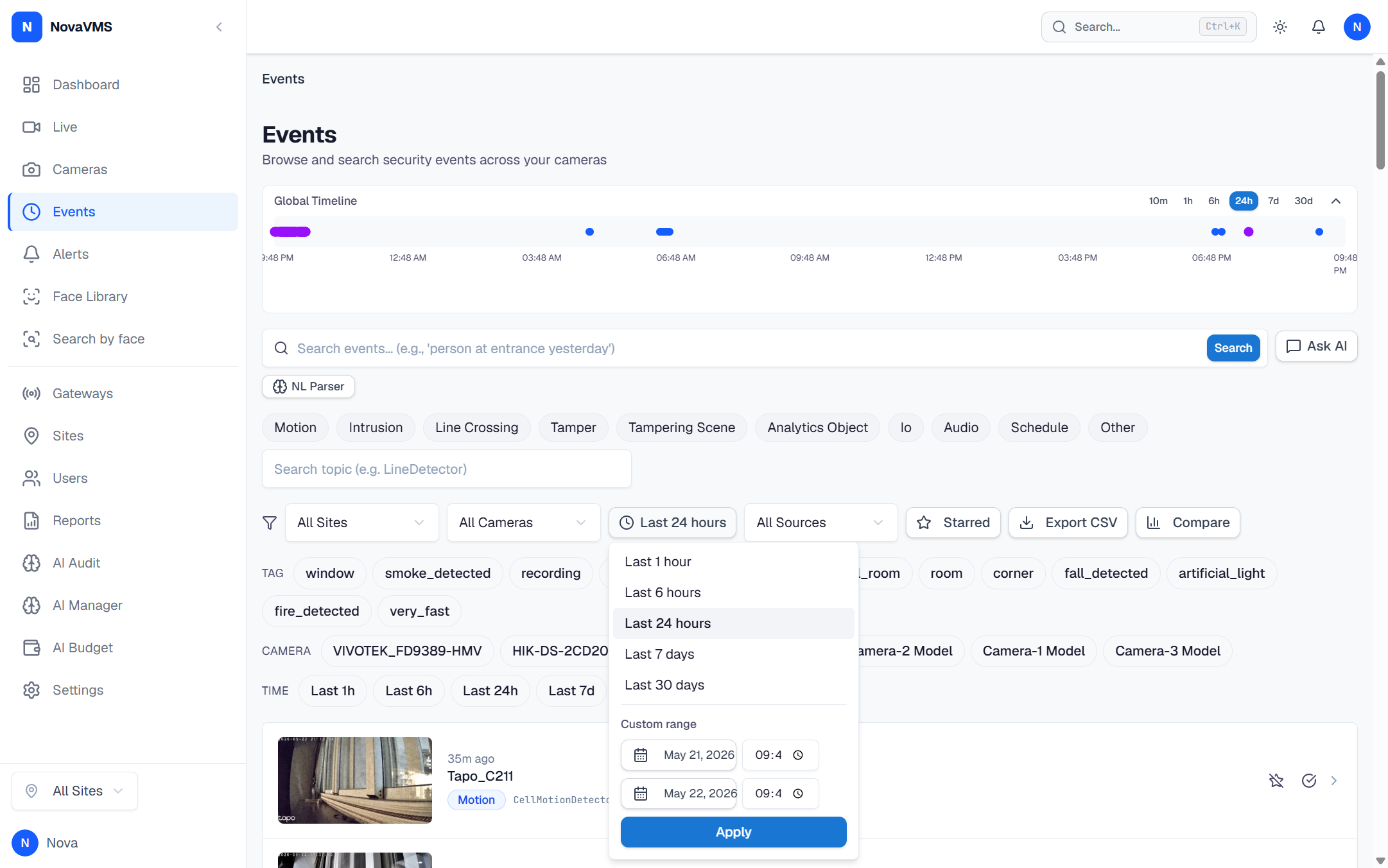
- Add filters one at a time:
- Camera or Site — scope to a location.
- Event category — one of
motion,intrusion,line_crossing,tamper,tampering_scene,analytics_object,io,audio,schedule,other(D95). See event_category values. - Topic contains — substring match against the ONVIF topic (e.g.
LineDetector). - Source — filter recordings by where they came from:
tunnel(gateway via cloud tunnel) orgateway_fallback(gateway via HTTP fallback). - Object — chip strip with
people,vehicles,animals,bags. - Face — pick one or more recognised face profiles from the Face Library.
- Tag — pick from the canonical AI tag vocabulary.
- Starred — show only operator-starred events.
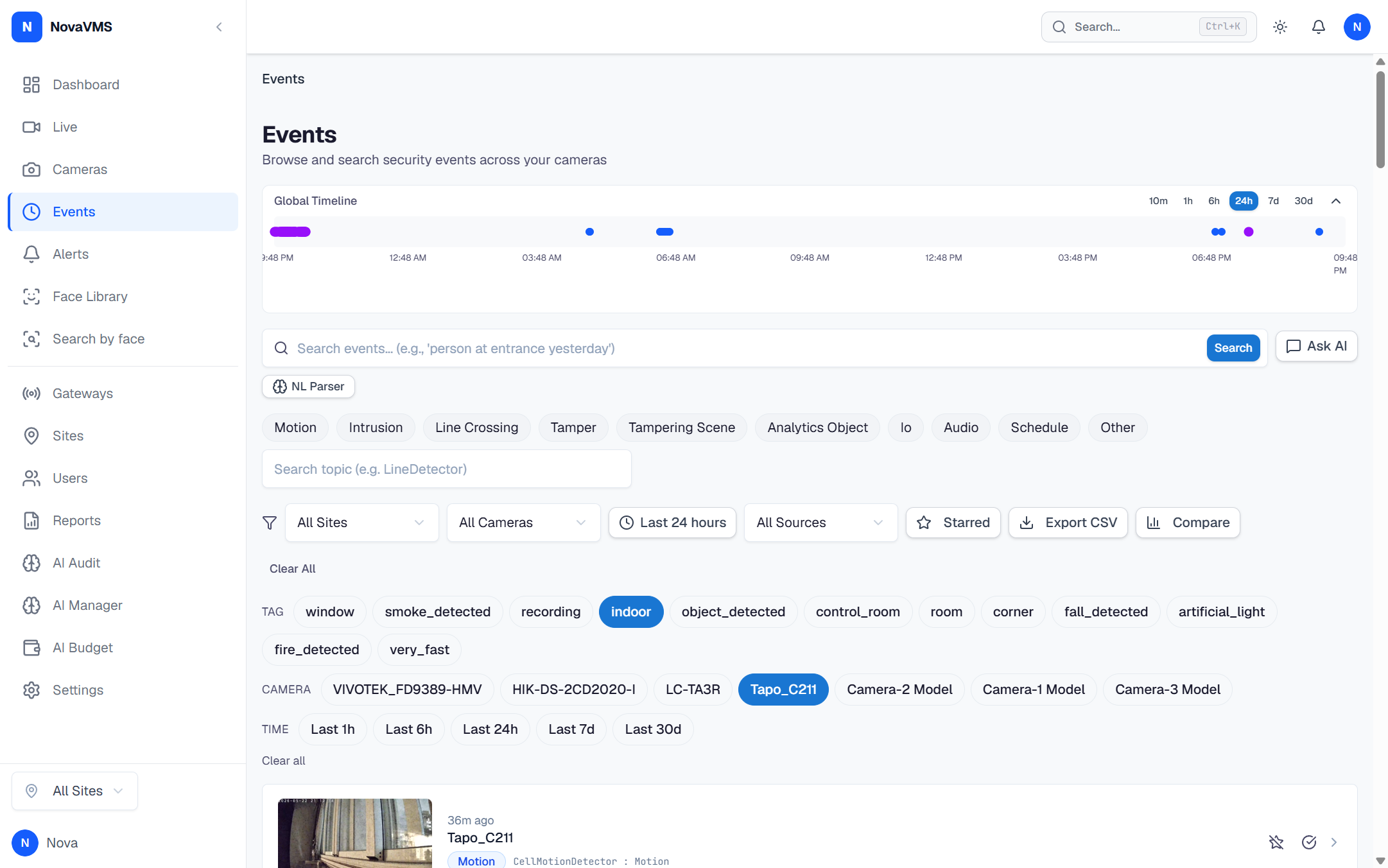
- The list updates as you add each filter. The count on the right shows the match total.
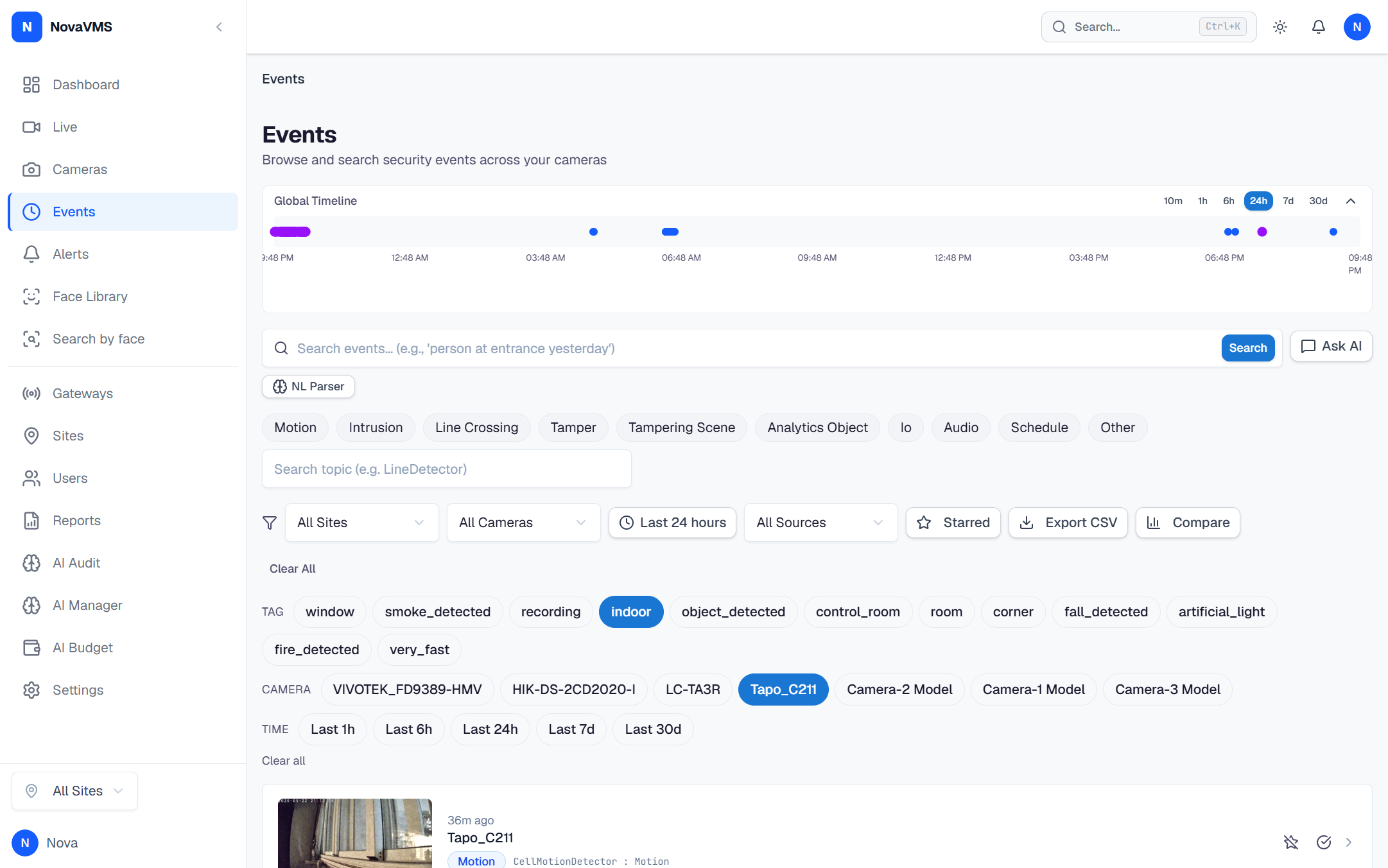
- Click a row to open the event. The list is sorted by trigger time, newest first.

Common variations
- Clear all filters: click the Clear button at the right of the filter bar.
- Export filtered set: click the download icon to get the current filtered list as CSV (max 10,000 rows). The CSV includes event category, trigger topic, and trigger source columns.
If this didn’t work
- No results but you expected some — the date range may be too narrow, or AI tags have not been generated yet for very recent events (allow ~30 seconds for AI indexing to finish on new events).
- Tag typeahead is empty — AI analysis is disabled for your org. See Events without AI analysis.
- An event from a deleted camera still appears — that’s expected (events survive camera soft-delete); see Events from a deleted camera still appear.
Related
- Search with natural language — ask questions instead of picking filters
- Canonical tags — the tag vocabulary used in filters
- How the event list is scoped — why you only see your org’s events