Create an alert rule
An alert rule turns matching evidence into an email, push, or in-app notification to specific teammates. Rules are org-wide and operator-owned (D81). The New Alert (NL wizard) path is an eight-step flow for indexed camera-event evidence: you describe the rule, the compiler produces a structured CompiledRule, you dry-run it against recent history, configure de-duplication and recipients, and then activate. Camera/gateway offline conditions use the separate New (legacy) system-event path described below.
Prerequisites
- Admin or Owner role for the complete create-and-activate procedure. Operators can compile, test, and save an undiscoverable inactive version, but cannot activate it. Viewers cannot create alert rules.
- Fewer than 100 alert rules in the org. The wizard blocks save if you hit the limit.
- At least one camera in scope — the wizard rejects empty scope selections.
Procedure
Step 1 — Open the wizard
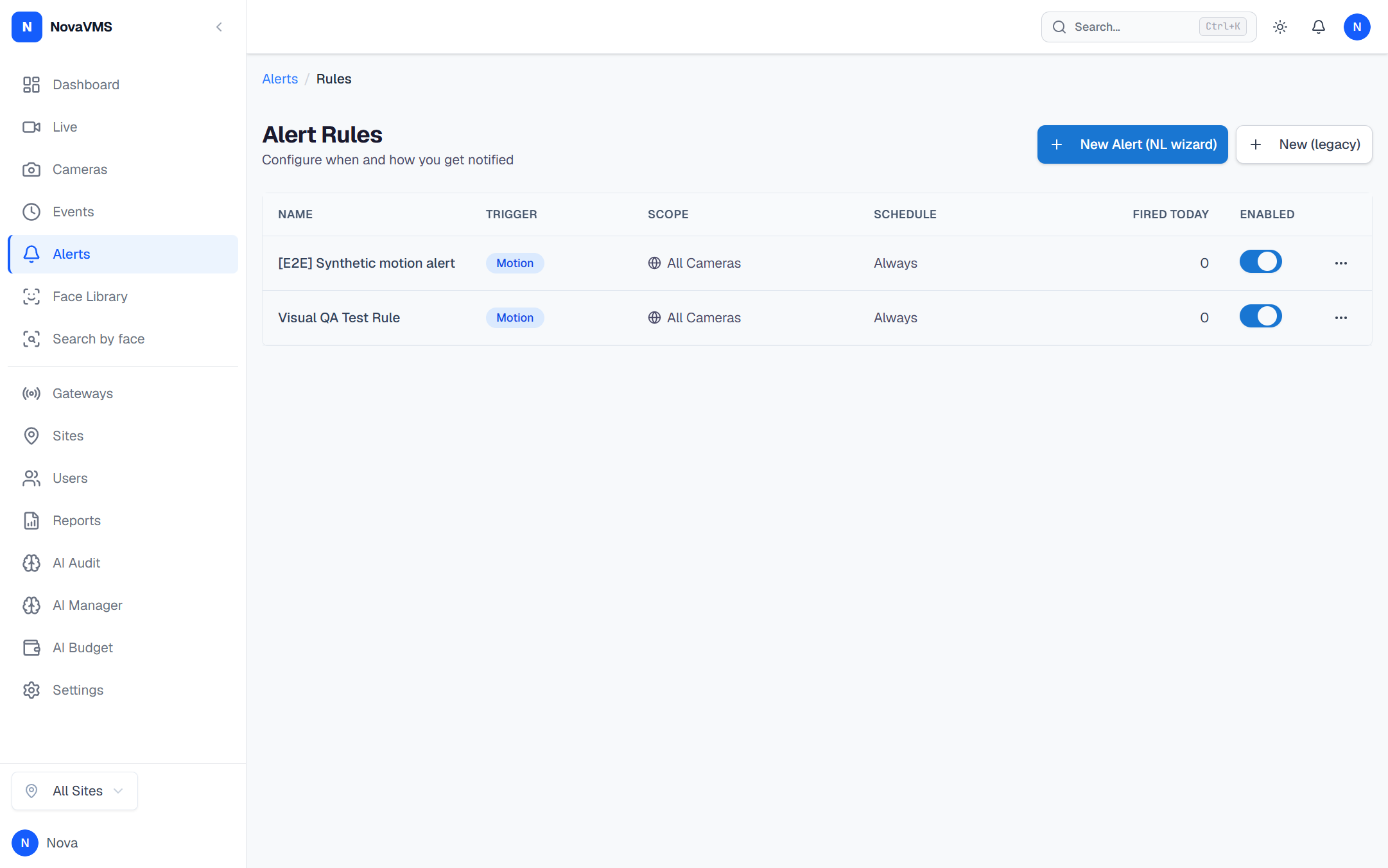
- Open Alerts → Rules from the left nav.
- Click New Alert (NL wizard). The wizard mounts at
/alerts/rules/new-v5.
Step 2 — Scope (Wizard Step 1)
Pick the sites and cameras the rule watches.
- Choose how to select cameras:
- All cameras — every camera in the org. Leave the site dropdown empty.
- Specific site + all its cameras — pick a site; the wizard enumerates the site’s camera list into the rule’s
camera_idsandsite_ids. - Specific site + hand-picked cameras — pick a site, then tick individual cameras.
- Click Next. The wizard blocks Next if a “specific” mode would leave the rule with zero cameras.
Step 3 — Zone (Wizard Step 2)
Choose where in the frame matters.
- Whole frame — the rule matches events from anywhere on the chosen cameras (default).
- Polygon zone — draw on the chosen camera’s snapshot. Minimum 3 vertices, stored as normalised
[0..1]coordinates. The polygon-mode radio is disabled if the chosen camera has no snapshot. - Click Next. The wizard blocks Next if you picked polygon mode but drew fewer than 3 vertices.
Step 4 — Describe (Wizard Step 3)
Write the rule in plain English.
- Type a description in the text area, 3–2000 characters. Examples:
- “Person on the loading dock after 10pm on weekdays”
- “Vehicle entering through the north gate during business hours”
- Click Next. The wizard rejects empty or over-length descriptions inline.
The compiled wizard does not author camera or gateway offline rules: compiled evidence has event categories and trigger sources, but no system_trigger. Use New (legacy) and choose the supported camera_offline or gateway_offline system-event trigger for those conditions.
Step 5 — Compile (Wizard Step 4)
The wizard calls POST /api/v1/alert-rules/compile (the Gemini compiler) and shows the resulting CompiledRule JSON, any warnings, and the compiler model version.
- Review the compiled fields:
scope,zone,schedule/time_windows,evidence_required(categories, trigger sources, object/face predicates, and confidence), optionalattributes/semantic/contextual_judge, andno_big_deal.evidence_required.canonical_tagsmay contain up to eight exact values from the live canonical vocabulary when the description maps to them. This compiled field is active and distinct from the runtime-inert legacy top-levelcustom_tagsfield. - If anything looks wrong, click Back to Step 4 and refine your prompt.
- Click Next when the rule looks right.
Step 6 — Test (Wizard Step 5)
Dry-run the rule against the last 24 hours of events.
- The wizard calls
POST /api/v1/alert-rules/test-compiledwith the compiled JSON. Noalert_historyrows are written. - The response shows
matched_event_ids,would_send_count,would_suppress_count, and a per-event evaluation log (with snapshots, summaries, and the decision/reasons). - If the rule fires on the wrong events, go back to Step 4 and refine.
- Click Next when the test looks right.
Step 7 — Suppress (Wizard Step 6 — No Big Deal de-duplication)
Configure the NBD engine so the rule doesn’t flood when a single event spawns a chain of look-alikes.
| Knob | Range | Default | Effect |
|---|---|---|---|
| Enabled | toggle | off | Master switch. When off, every Decision sends — no NBD de-dup. |
window_seconds | 60–86400 | 10800 (3h) | Sliding window that groups similar events on the same camera + rule + zone. |
similarity_threshold | 0.5–0.99 | 0.85 | How visually similar a new event must be to an existing group to count as a repeat. |
novelty_threshold | 0.05–0.5 | 0.20 | How “new” a repeat must be to bypass suppression anyway. |
evidence_confidence_floor | 0.3–0.95 | 0.60 | Suppress only if combined evidence score meets this floor. |
allow_suppress_importance_4 | toggle | off | Permit suppression of importance=4 events (importance 5 is always send). |
never_suppress_critical is always true server-side — the operator cannot opt out (the API rejects false).
Step 8 — Recipients (Wizard Step 7)
Choose who gets notified through which channel.
- Push — tick users in the org. The current compiled fanout uses these IDs as in-app notification destinations; mobile device delivery is not a separate verification oracle for this workflow.
- Email — paste email addresses, one per line. The wizard does not validate that each address belongs to a user in the org; you can route to shared mailboxes.
- Webhooks — tick webhook definitions from the org’s
/settings/webhookspage.
At least one channel is typical, but the server-side “≥1 channel” gate is not enforced in v1 (a rule with zero recipients saves successfully and never notifies anyone). Configure at least one channel.
Step 9 — Activate (Wizard Step 8)
- Click Save & Activate while signed in as an Admin or Owner. The wizard saves an inactive compiled version and then promotes that version to active. The active compiled version is the runtime source of truth.
- The wizard then makes a best-effort call to the legacy
POST /api/v1/alert-rules/{id}/activateendpoint. A newly created compiled-only rule has no legacyalert_rulesrow, so that call returns 404 and is ignored; activation at the compiled layer has already succeeded.
Save as draft stores an inactive version and returns to the Rules page. Do not use it as an approval handoff: inactive compiled-only versions are not listed there and cannot be loaded by the current wizard.
Verify
- The new rule appears in Alerts → Rules after Save & Activate because active compiled-only rows are included in the list.
- The audit log (Admin → Audit Log) has fresh
alert_rule.save_compiled_versionandalert_rule.activaterows attributed to you. Do not requirealert_rule.activatedfor a newly created compiled-only rule; that legacy audit action is written only when the best-effort legacy activation call finds a legacy row. - A test notification (Step 6) does not appear in
alert_history; activation does not generate any alerts on its own — alerts fire as matching events come in.
Common variations
- Manage a legacy rule: the Rules-page Edit, Test, toggle, Duplicate, and
Delete controls operate on legacy
alert_rulesrows. - Replace a live compiled rule: create a new rule, reselect scope and zone, refine the description, compile, test, and activate it as an Admin or Owner. Verify the replacement before arranging cleanup of the older compiled rule.
- Compound conditions (AND / OR) with explicit operators: not in v1 as a UI builder. Express the logic in the natural-language description and let the compiler emit the structured form — the NBD engine handles the suppression layer separately.
If this didn’t work
- Save is greyed out — a wizard step is still invalid. Look for red field outlines on the step indicator at the top of the wizard.
- Compile failed with a Gemini error — the per-org daily judge budget may be exhausted (
alerts.judge_budget_threshold_100system alert), or Gemini is temporarily unreachable. Try again in a few minutes; admins can raise the budget viaPATCH /api/v1/alert-rules/budget. - Test notification path for a legacy rule — the legacy
POST /api/v1/alert-rules/{id}/testendpoint still exists (operator+) and fires a test payload through every configured legacy channel, bypassing throttle and NBD. Do not use the Rules-page Test control for a compiled-only rule. - Too many alerts once the rule fires — update the active compiled rule’s compatible NBD settings, or create and test a replacement with tighter predicates and a smaller scope. Do not save from a direct active-rule reopen. See Alert flood for the full playbook.
Related
- Alert rule schema — every field, type, and constraint after the compiler emits the structured form
- Canonical AI tags — the tag vocabulary the compiler matches against
- Universal ONVIF events — the D95 event taxonomy this wizard targets
- Alert response time — how fast a matching event becomes a notification
- Alert flood — what to do when a new rule is too noisy