Reset a user's password
Resetting a user’s password generates a fresh random temporary password, marks the user as password_reset_required, and forces them to set a new password on their next login. The new temporary password is shown once to you in a copy-now dialog. If SendGrid is configured, NovaVMS also emails the password directly to the user; if not, you deliver it through a trusted channel. You cannot pick the password — the system always generates a random one.
Procedure
- Open Admin → Users.
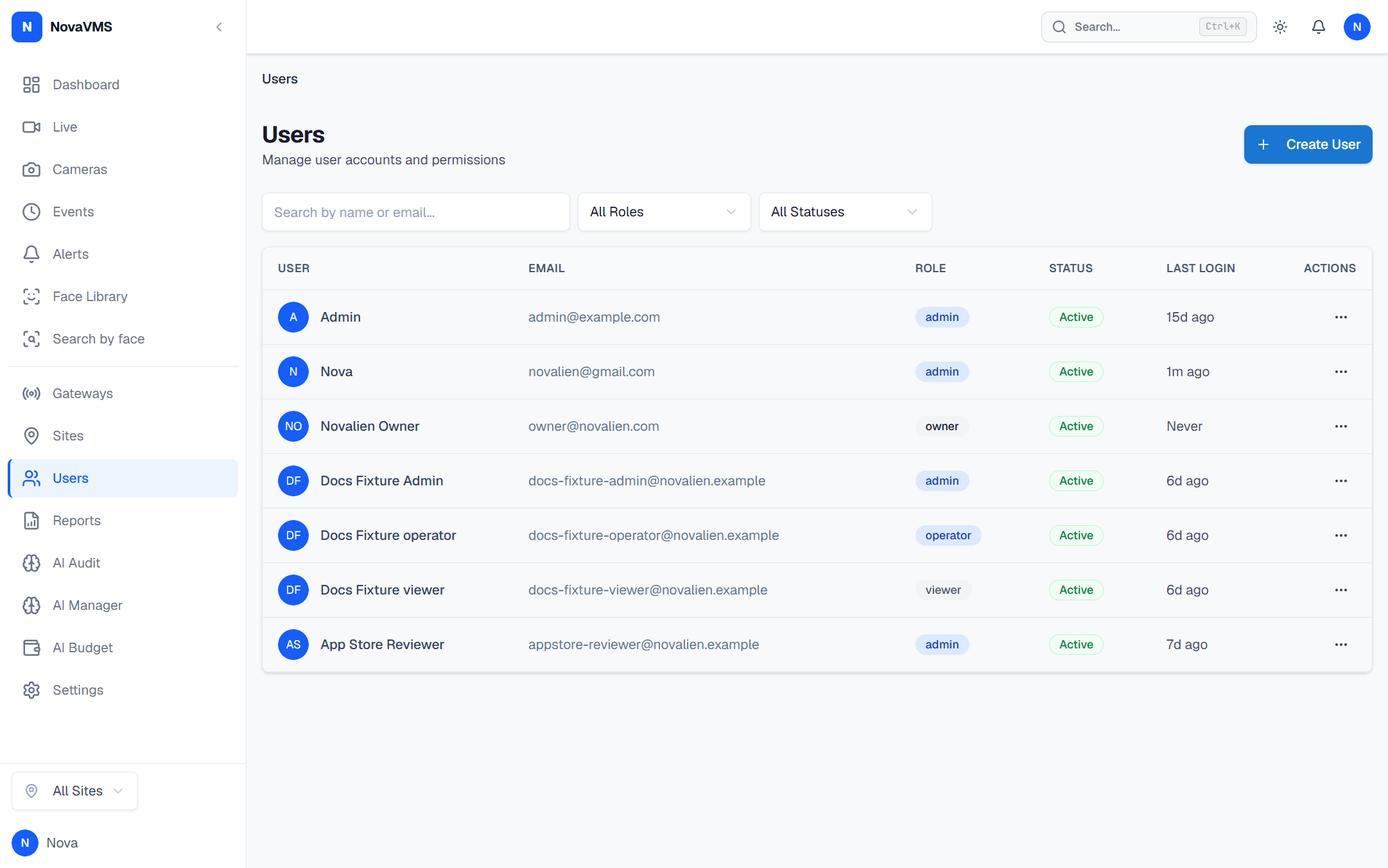
- Open the row menu on the user who needs a reset.
- Click Reset Password.
- Confirm the action. NovaVMS generates a 16-character random temporary password and sets
password_reset_requiredon the user.
- The temporary password is displayed in a one-time copy dialog. If SendGrid is configured, NovaVMS also emails it directly to the user. Deliver the password through a trusted channel (not public chat, not email if SendGrid is unavailable). The dialog disappears on close; the password is never retrievable from the audit log.
Common variations
- User never received the email: see Invitation email didn’t arrive. The same SendGrid pipeline delivers password resets.
- User asks to set their own password: point them at Forgot password — the self-service flow. They’ll get a reset link valid for one hour.
- Suspected account compromise: after the reset, also review their sessions and the audit log for recent activity under their user ID.
If this didn’t work
- If Reset Password is missing from the row menu, your role is Operator or Viewer. Password reset is Admin/Owner only.
- If the email never arrives, see Invitation email didn’t arrive.
- If the user calls back saying their new password doesn’t work, confirm they’re typing the temporary password and not their old one — the old one is revoked the moment you click Reset.