Find your cameras
Your admin has assigned you access to specific cameras at specific sites. This page shows you where to find them and how to read their status at a glance.
Procedure
- Sign in to NovaVMS.
- Click Cameras in the left sidebar.
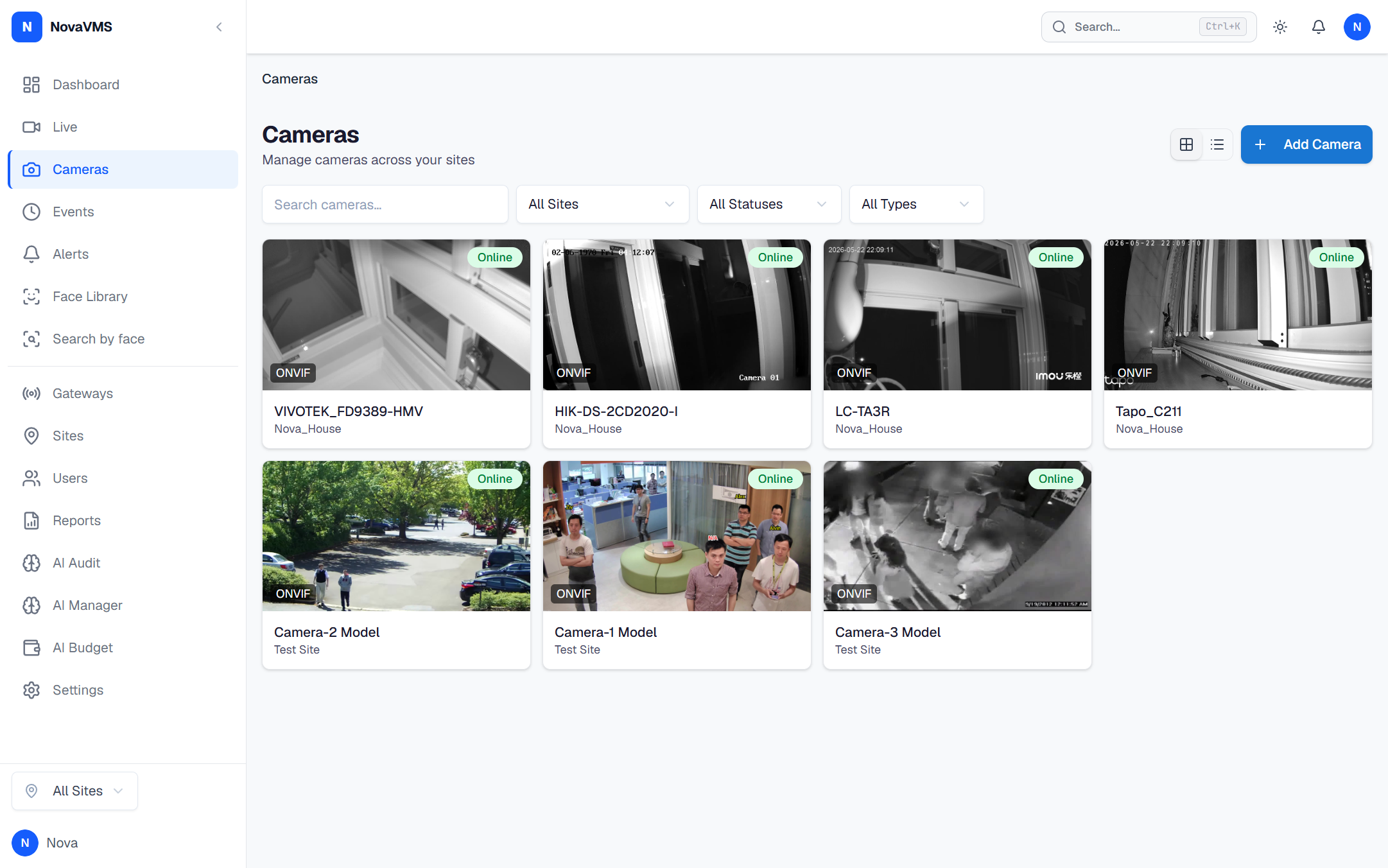
- The Cameras page opens in Grid view by default. Each card shows a live snapshot, the camera name, the site, and a coloured status dot.
-
Read each camera’s status from its coloured dot:
Colour Meaning Green Online — receiving live video Red Offline — no connection from the gateway or camera Yellow Connecting or reconnecting Gray Disabled by an admin -
To narrow the list, use the filters at the top of the page:
- Site dropdown — only shows the sites you have access to.
- Status — Online, Offline, Error, Pending, or Disabled.
- Type — ONVIF or RTSP.
-
Click a camera card to open its detail page. From there you can watch live video and browse events for that camera.
Common variations
- List view. Click the list icon in the toolbar to switch from Grid to List. The list shows the same cameras with extra columns: connection mode (Direct or Gateway), resolution, and type. Your choice is remembered next time you open the page.
- Site filter is empty. If the Site dropdown only shows one option, your admin has assigned you to a single site. That is the only location you can see cameras from.
- The page says “No cameras found.” Your admin has not assigned any cameras to you yet. Contact them to request access.
Related
- Watch a live camera — open a camera tile and watch in real time
- Find a recorded clip — find video of something that already happened
- Why NovaVMS uses five roles — how the Viewer role’s site-scoped access works