Export produces an empty file
Symptom
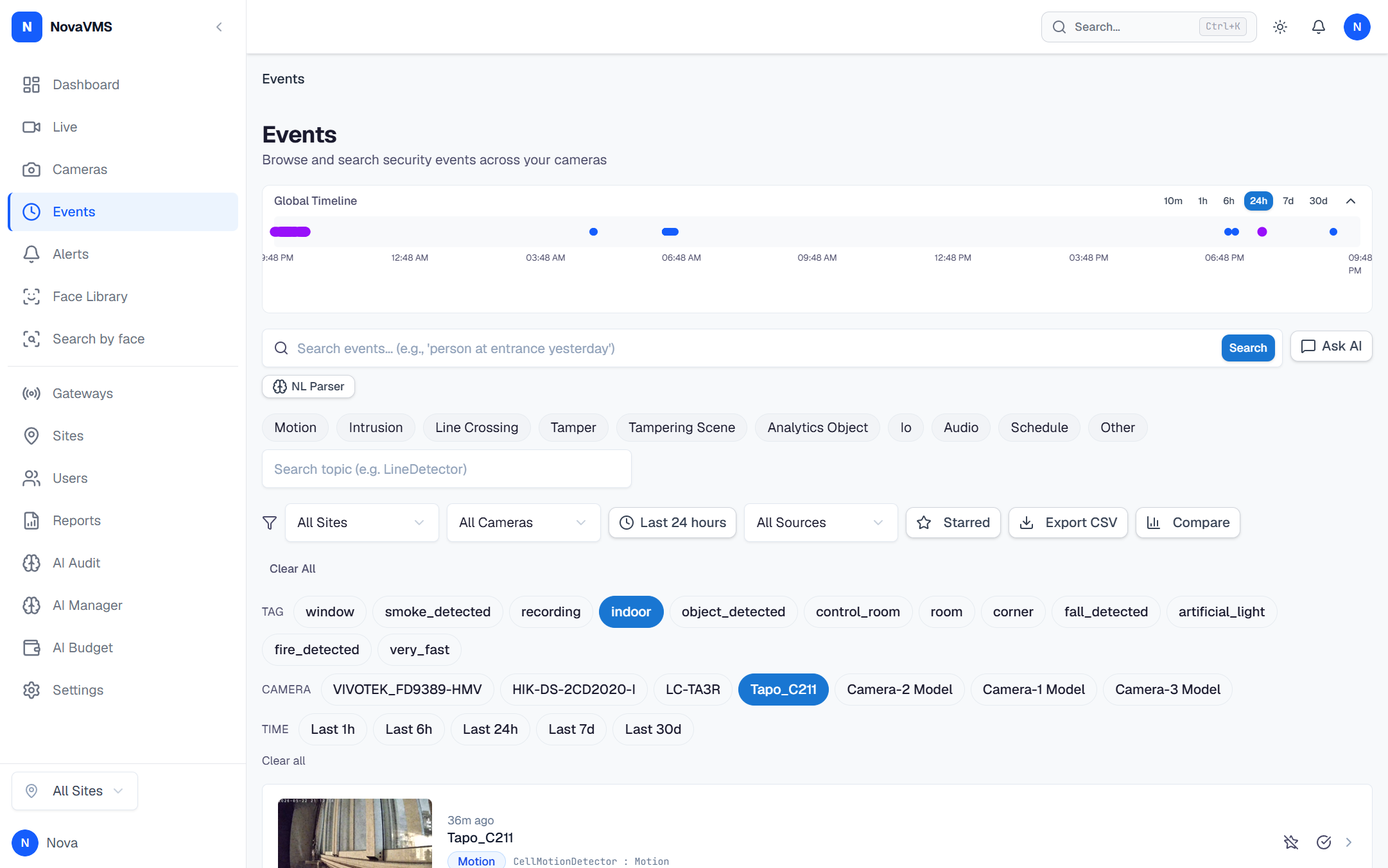
You export from the Events page and the resulting CSV has only the header row and no data — or you click Download on the event player and the saved MP4 will not play.
Likely causes
- Your filter on the Events page returned zero rows. A CSV export of an empty filter produces a header-only file.
- The event’s clip status is
failedorsnapshot only. The source video is missing — there is nothing to download. - Object storage permissions are broken. The cloud server’s presigned URL fails — the browser saves an empty or unplayable file.
Fix
If the CSV is empty (header only)
Narrow your diagnosis before re-exporting:
- Clear the filter and confirm the Events page actually has rows.
- If the page has rows, re-apply filters one at a time. A common case is an over-narrow date range (e.g. the date picker collapsed to a single hour with no events).
- If the filter is correct and rows are present in the UI but the CSV is still empty, report a ticket — this is a known-bad state.
If the MP4 download is unplayable
- Open the event you tried to download. Play it inline first — if the player cannot play the clip either, the source clip is unavailable.
- Check the event’s Clip status on the event detail page. If it shows failed or snapshot only, the source video is missing — the download is not supported for snapshot-only events in v1.
- Object storage permissions: ask your admin to confirm the cloud server can read the clip from GCS / S3 / MinIO. Presigned URL generation logs (search the cloud
slogoutput for the event ID) will show the error if any.
Verify
- For CSV: open the file — it has the header row plus at least one data row that matches what you saw in the UI.
- For MP4: the file plays in a standard player (VLC, QuickTime, Chrome’s built-in
file://preview).
If none of this worked
Collect the event ID (visible in the URL on the event detail page) and the approximate time of the export. Open a ticket at support.novalien.com.
See also:
- Export a clip as evidence
- Export events from a camera over a date range
- Live view is black — if the source clip will not play at all